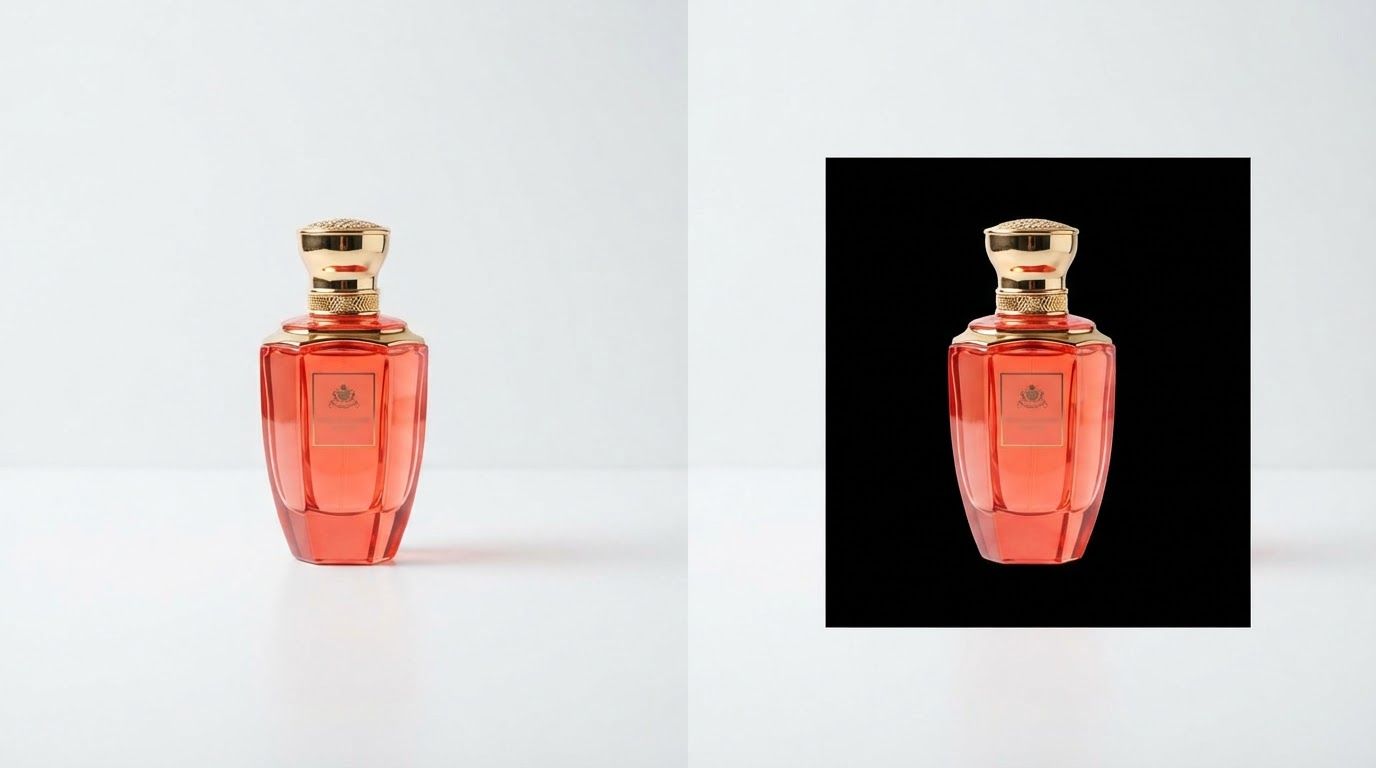
Every major e-commerce platform has the same expectation: clean product photos on a plain background. Amazon requires pure white (#FFFFFF). Shopify recommends it. Etsy shoppers respond better to it. And if your product photos look inconsistent across listings, buyers notice.
The problem is that editing dozens or hundreds of product photos manually is not realistic. This guide shows you how to remove product photo backgrounds quickly, whether you have one image to fix or an entire catalog to process.
Why Product Photos Need Clean Backgrounds
Background removal is not just about aesthetics. It affects how your listings perform.
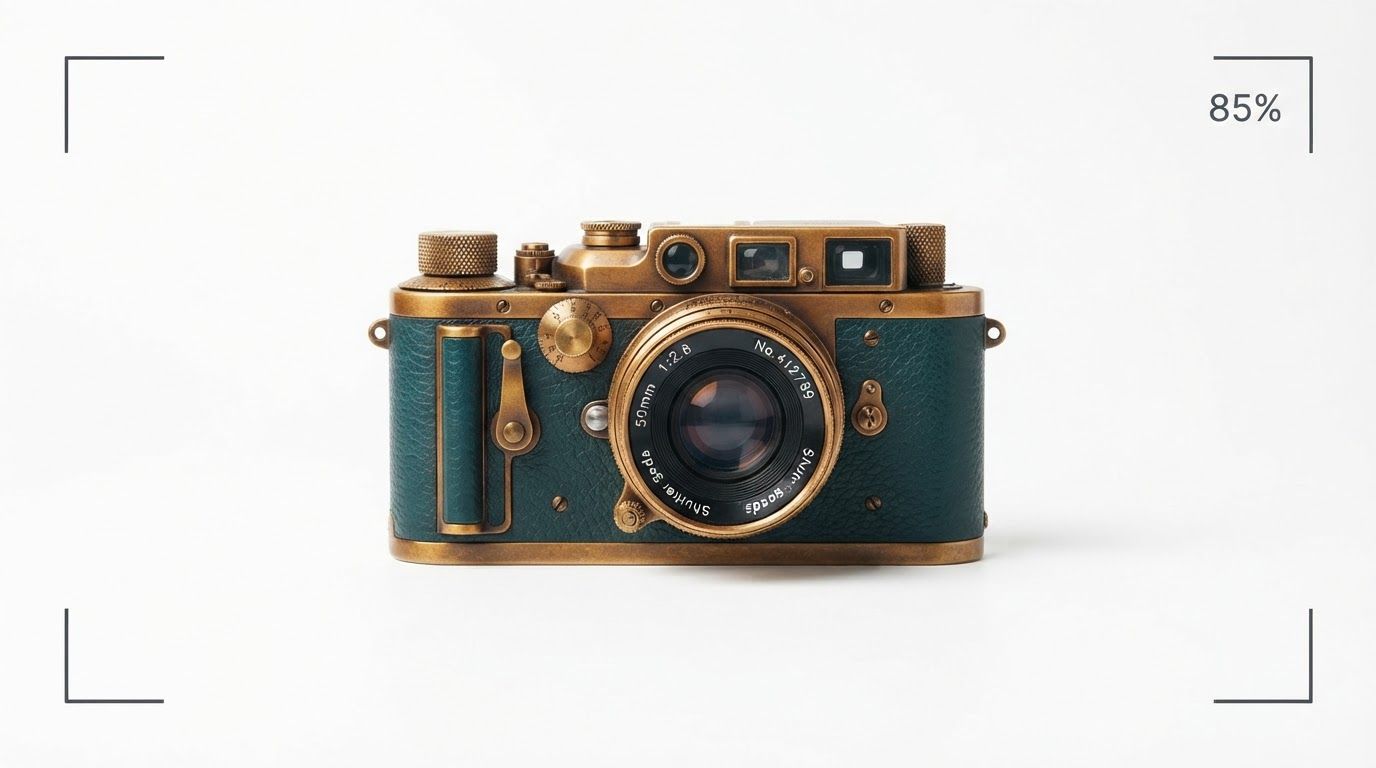
Platform compliance. Amazon's main image requirements are strict: pure white background, product filling at least 85% of the frame, no props or text. Listings with non-compliant images get suppressed from search. Shopify and Etsy are more flexible, but white or neutral backgrounds consistently outperform busy ones in A/B tests.
Buyer focus. A clean background directs attention to the product itself. Shoppers make decisions in seconds, and a cluttered photo background competes with the product for attention.
Visual consistency. If your store has 50 products and each photo was shot against a different wall, counter, or table, the catalog looks unprofessional. Removing backgrounds and applying a consistent white or neutral color makes your whole store look cohesive.
How to Remove Product Photo Backgrounds with BatchRemover
Step 1: Upload Your Product Photos
Go to BatchRemover and drag your product images onto the upload area, or click to select files. Supported formats are JPG, PNG, and WebP.
For a single product photo, upload one image and process it for free with no account required. For full catalog processing, a paid plan lets you upload and process multiple images at once. Yearly plan users can upload an entire folder directly.
Step 2: AI Removes the Background
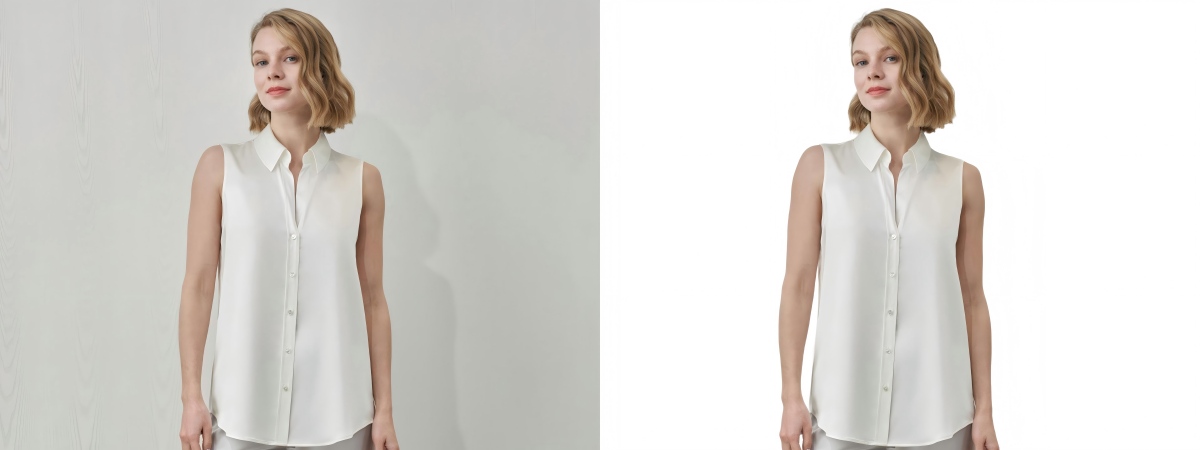
BatchRemover's AI automatically detects the product and removes the background from every image. It handles common product types well: apparel, footwear, electronics, jewelry, packaged goods, and more. Fine details like transparent packaging, reflective surfaces, and product edges are preserved.
For batch uploads, all images process simultaneously, so a catalog of 30 product photos takes about the same time as a single image.
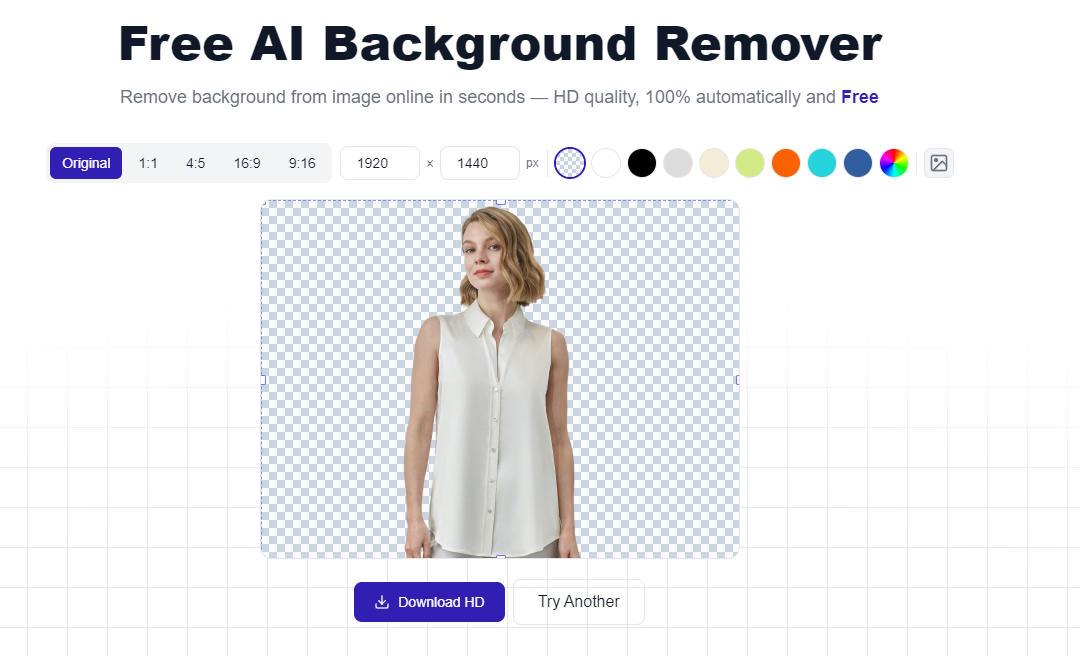
Step 3: Adjust Background and Canvas
Once backgrounds are removed, you can customize the output:
- Background color: Apply pure white (#FFFFFF) for Amazon compliance, or any custom color to match your brand. See our guide on how to change an image background to white for more detail.
- Background image: Swap in a lifestyle scene or custom background image if you want styled product shots for Instagram or ads.
- Canvas size: Resize the image canvas to match platform requirements, such as square (1:1) for Amazon or Shopify, without distorting the product.
For batch processing, these adjustments apply to all images at once. You can also fine-tune individual photos in the editor if specific products need different treatment.
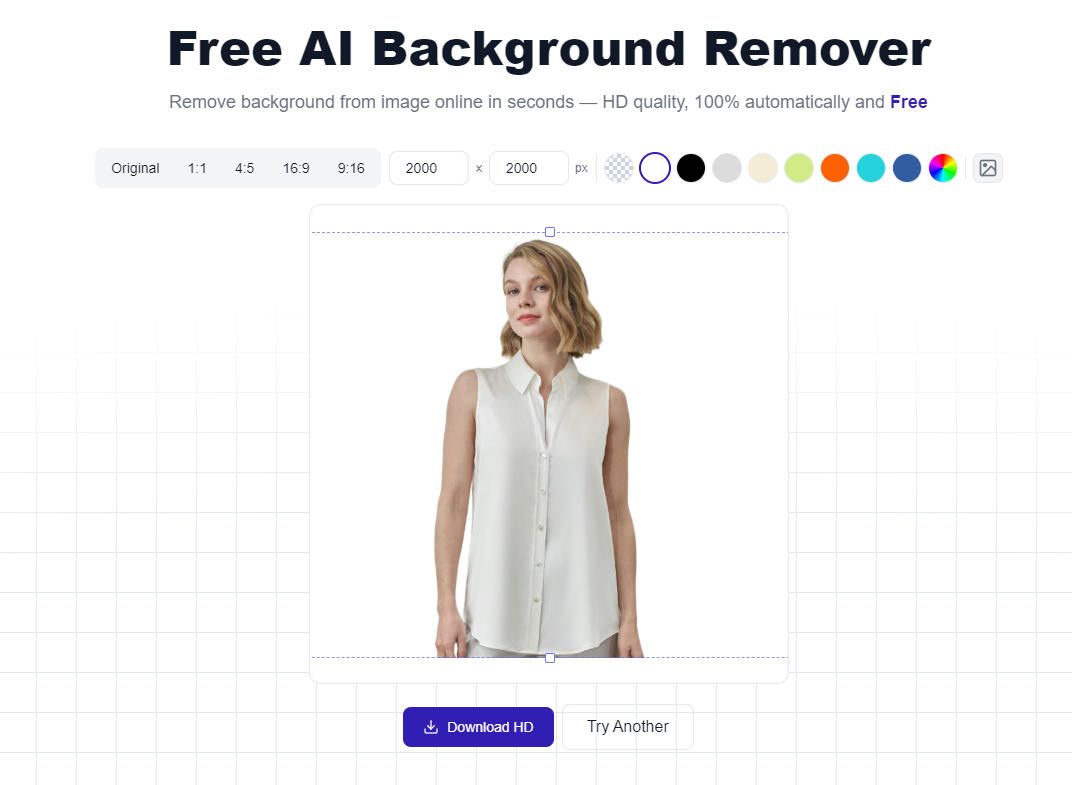
Step 4: Download as PNG, JPG, or WebP
Download your processed images individually or as a ZIP file for the whole batch. Choose your format:
- PNG: Preserves the transparent background. Use this if you plan to composite the product onto different backgrounds later.
- JPG: Applies a white or custom background color. Smaller file size, widely accepted by all e-commerce platforms.
- WebP: Best for web use, smallest file size with good quality. Useful for Shopify stores optimizing page load speed.
Amazon, Shopify, and Etsy: Background Requirements at a Glance
| Platform | Background Requirement | Recommended Format |
|---|---|---|
| Amazon | Pure white (#FFFFFF), no shadows | JPG |
| Shopify | No strict rule, white preferred | JPG or WebP |
| Etsy | No strict rule, clean preferred | JPG or PNG |
| eBay | White or light background preferred | JPG |
If you are listing on Amazon, use the background color tool to set the exact hex value to #FFFFFF before downloading. A slightly off-white background can still trigger listing suppression.
Single Image or Full Catalog: Which Option Do You Need?
Single image (free, no account required) If you have one or a few products to process, the free single-image mode works with no signup. Upload one photo, remove the background, adjust, and download. No watermarks on the output.
Batch processing (paid plan) If you are managing a product catalog with dozens or hundreds of SKUs, batch processing is the practical option. Upload your full catalog, process everything simultaneously, apply settings across all images at once, and download as a ZIP. Lifetime and Yearly plans are available based on your volume.
Yearly plan users also get folder upload, which means you can point BatchRemover at a folder of product photos and upload everything in one action.
Tips for Clean Product Photo Results
Shoot on a contrasting background. Even if you plan to remove the background, shooting your product against a clean, contrasting surface (like a light gray or blue backdrop for light-colored products) makes the AI cutout significantly cleaner.
Watch reflective products. Glossy items like bottles, electronics, and jewelry can be tricky. The AI handles most cases well, but check the edge detail on highly reflective products before downloading.
Use PNG for reuse. If the same product image will appear on your website, Amazon, and printed packaging, download as transparent PNG. You can always apply different background colors later without re-processing.
Batch by product type. If you're processing a large mixed catalog, grouping similar product types together makes it easier to apply consistent background and canvas settings across each group.
Frequently Asked Questions
Do I need to create an account to remove a product photo background?
No. Single image background removal is completely free with no account required. Batch processing for full catalogs requires a paid plan.
What background color does Amazon require?
Amazon's main product image policy requires a pure white background, specifically RGB 255, 255, 255 (hex #FFFFFF). Use BatchRemover's background color tool to set this exactly before downloading.
Can I remove backgrounds from product photos on my phone?
Yes. BatchRemover runs in the browser with no app download needed, and it works on iPhone and Android. You can upload photos directly from your phone's camera roll.
What if my product has a white or light-colored edge?
The AI handles white and light-colored products against white backgrounds reasonably well, but results depend on how much contrast there is between the product and the original background. For best results, shoot light-colored products against a mid-gray backdrop before removing the background.
Is there a limit to how many product photos I can process?
Lifetime plans support batches of up to 30 images at a time. Yearly plans support up to 60 images per batch. For very large catalogs, you can run multiple batches in sequence.
Does background removal affect image resolution?
No. BatchRemover outputs images at the same resolution as the originals. There is no compression or quality reduction applied during processing.
Start Cleaning Up Your Product Photos
One photo is free, no account needed. For full catalog processing, batch plans start at $19.9.