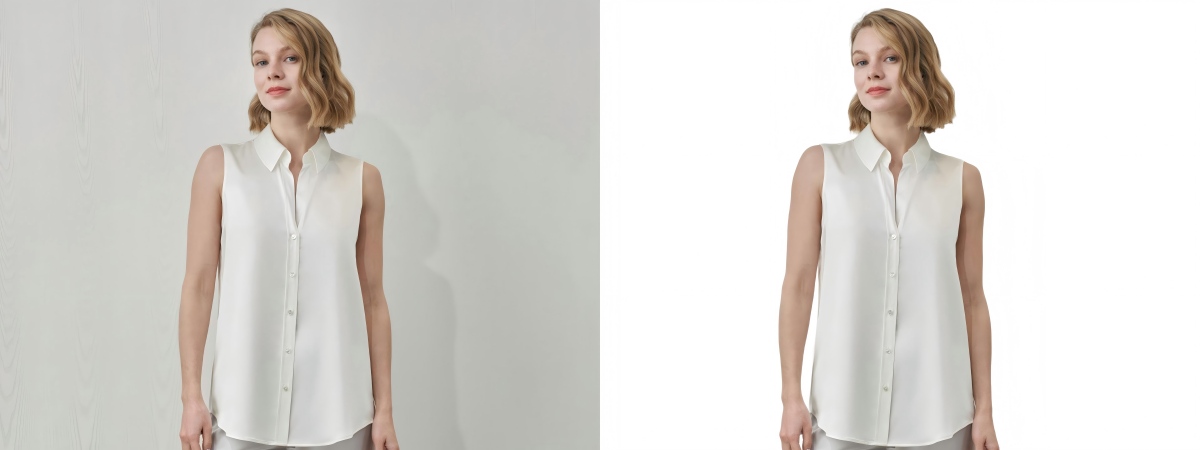
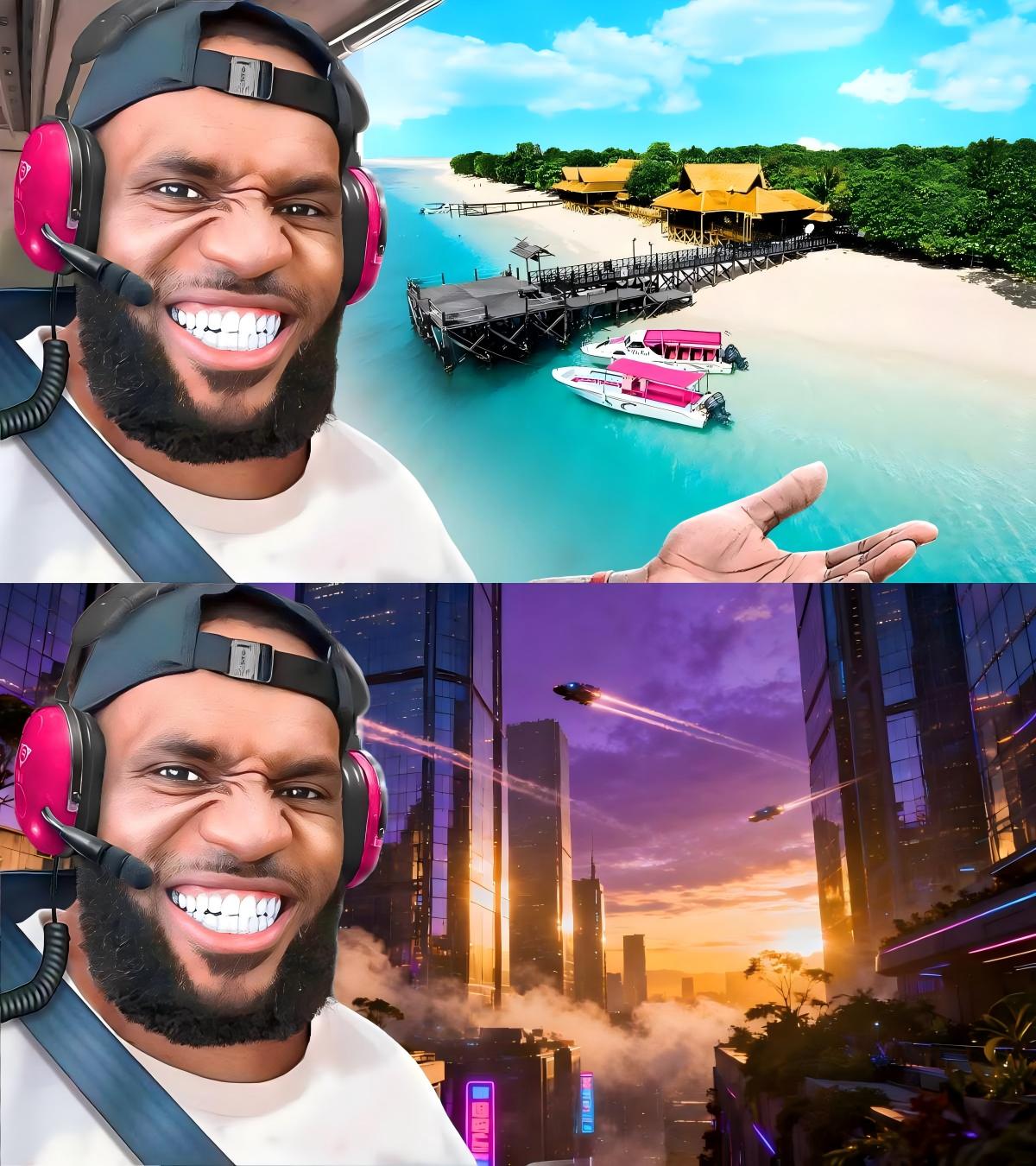
The difference between a thumbnail that gets clicked and one that gets ignored often comes down to a single thing: the subject stands out clearly from the background. The most common technique top YouTubers use is removing the background from their own photo and placing it over a bold, designed background.
If you have never done this before, it sounds complicated. It is not. You can remove the background from a photo for your thumbnail in under a minute, for free, with no Photoshop and no account required.
Why YouTubers Remove Backgrounds from Thumbnail Photos
It separates the subject from the scene. A photo taken in your room, office, or studio will always compete with its own background. Removing it lets you control exactly what appears behind you, which means stronger contrast, clearer visual hierarchy, and a thumbnail that works at any size.
It creates a consistent look. Channels with a recognizable thumbnail style build viewer recognition faster. When every video follows the same visual format, a subscriber scanning their feed can spot your video instantly.
It lets you design freely. Once you have a clean cutout of your face or an object, you can place it over anything: a solid color, a gradient, a screenshot, a title card, or a styled background that matches your video topic.
How to Remove Background from a Photo for YouTube Thumbnails
Step 1: Upload Your Photo
Go to BatchRemover and upload the photo you want to use. This is typically a portrait photo of yourself, a product you are reviewing, or any object you want to feature in the thumbnail.
Supported formats are JPG, PNG, and WebP. Single image processing is free with no account required.
Step 2: AI Removes the Background
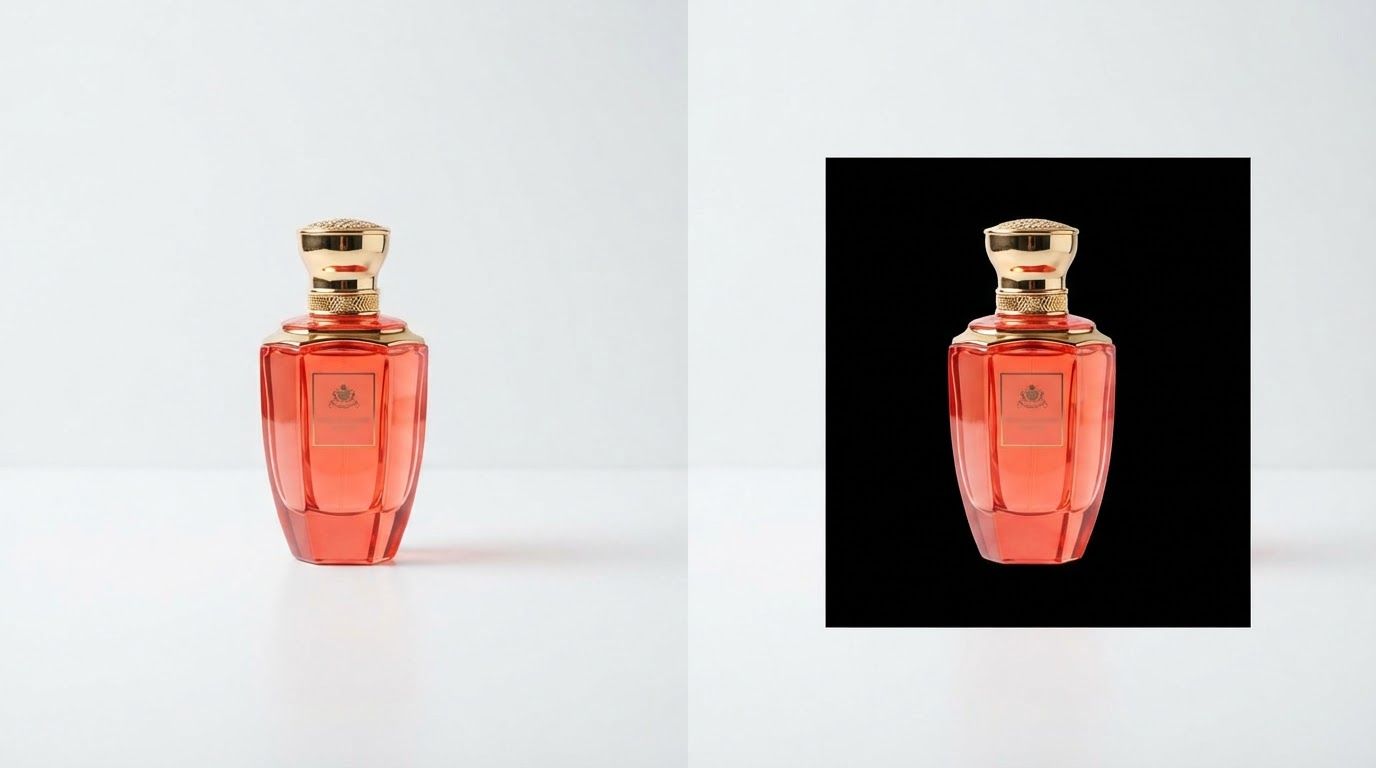
BatchRemover's AI automatically detects the subject in your photo and removes the background. It handles portraits well, preserving hair edges, fine strands, and the natural boundary between you and the background. For object shots, it isolates the product cleanly.
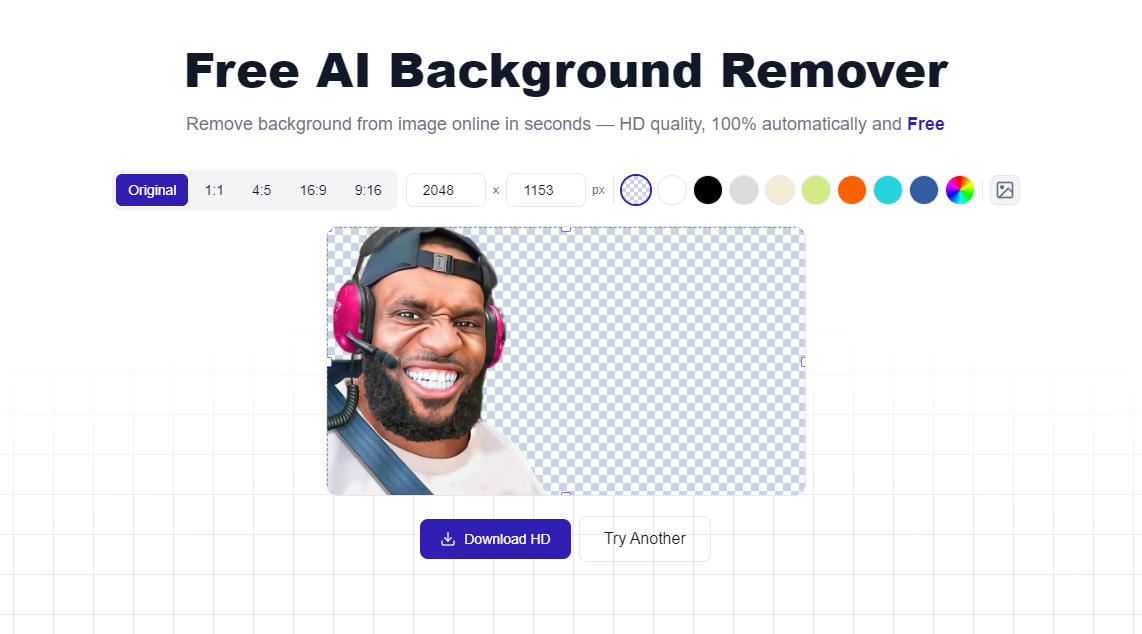
Processing takes a few seconds. You will see a preview of the cutout immediately.
Step 3: Adjust and Preview
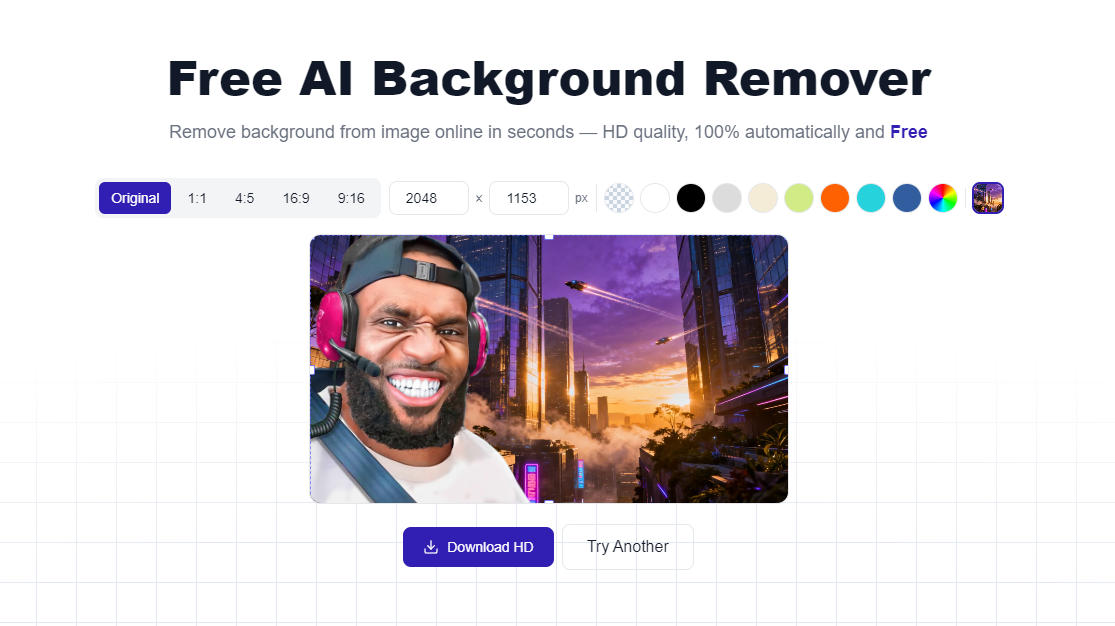
After the background is removed, you can:
- Set a background color: Apply a solid color to preview how your cutout looks against different backgrounds before you take it into your design tool.
- Swap in a background image: Upload a custom background to composite the shot directly in BatchRemover.
- Resize the canvas: Adjust the canvas dimensions to match YouTube's recommended thumbnail size (1280x720px, 16:9 ratio) if you want to finalize the composition here.
Step 4: Download and Add to Your Thumbnail Design
Download your cutout as PNG to preserve the transparent background, then bring it into your thumbnail design tool (Canva, Photoshop, Figma, or any editor). Place it on your chosen background and add your title text.
If you prefer a flat file, download as JPG or WebP with a background color applied.
What Makes a High-CTR YouTube Thumbnail
Background removal is one part of a broader thumbnail strategy. Once you have a clean cutout, keep these in mind:
High contrast between subject and background. Your face or main subject should be clearly visible at small sizes. If the background behind you is the same tone as your skin or clothing, it will read as a blob, not a person. Test your thumbnail at thumbnail size before publishing.
Faces drive clicks. Thumbnails with clear facial expressions consistently outperform those without. A surprised, excited, or curious expression gives viewers context about what the video delivers before they click.
Limit the text. Three to five words maximum, large enough to read on a phone screen. The thumbnail and the video title should complement each other, not repeat the same information.
Consistent placement. If you always appear on the left side of your thumbnails with bold text on the right, viewers recognize the pattern. Consistency builds a visual brand over time.
Single Photo or Batch: Which Option Do You Need?
Most creators process one photo per video thumbnail. The free single-image mode handles this with no account required.
If you run a YouTube network, manage multiple channels, or produce content at high volume, batch processing lets you remove backgrounds from all your thumbnail source photos at once. Paid plans support batch uploads of up to 30 images (Lifetime) or 60 images (Yearly), with folder upload available on the Yearly plan.
Tips for Best Thumbnail Cutout Results
Take the photo against a contrasting background. Green screens work perfectly, but any solid, non-matching background will produce a cleaner cutout. If you wear a white shirt, avoid a white wall. If you wear dark colors, avoid a dark background.
Good lighting on your face. Even lighting with no harsh shadows makes edge detection more accurate and the cutout cleaner. Ring lights and softboxes help significantly.
Avoid motion blur. A slightly blurry photo produces rough edges on the cutout. Use a fast shutter speed or ensure you are completely still when the shot is taken.
Check the hair. Hair is the most common area where cutouts look rough. Zoom in on the edge of your hair in the preview before downloading. Most results are clean, but the editor lets you touch up any areas that need it.
Frequently Asked Questions
Is it free to remove background from a thumbnail photo?
Yes. Single image background removal is completely free with no account required. Upload your photo, remove the background, and download, no watermarks.
What size should a YouTube thumbnail be?
YouTube recommends 1280x720 pixels at 16:9 aspect ratio, with a file size under 2MB. JPG, PNG, GIF, and WebP are all accepted formats. PNG is recommended if you are working with transparent backgrounds and compositing in a design tool.
Can I use this on my phone to make thumbnails?
Yes. BatchRemover runs in the browser with no app download required, and it works on iPhone and Android. You can shoot a photo with your phone and process it immediately without transferring files to a computer.
Does it work on full-body shots, not just headshots?
Yes. The AI handles full-body portraits as well as close-up headshots. Results are generally cleaner when the full figure is clearly visible and not cropped mid-body.
What if my hair looks rough on the edges?
The AI produces clean results on most hair types, but very fine, flyaway, or motion-blurred hair can have rough edges. Use the editor after processing to refine any areas that need cleanup before downloading.
Can I remove the background from a screenshot or non-photo image?
Yes. BatchRemover works on any image type. If you want to isolate a logo, icon, product image, or graphic for your thumbnail, upload it the same way as a photo and the AI will attempt to detect and remove the background.
Start Making Better Thumbnails
One photo, free, no account needed. Get a clean cutout in seconds.