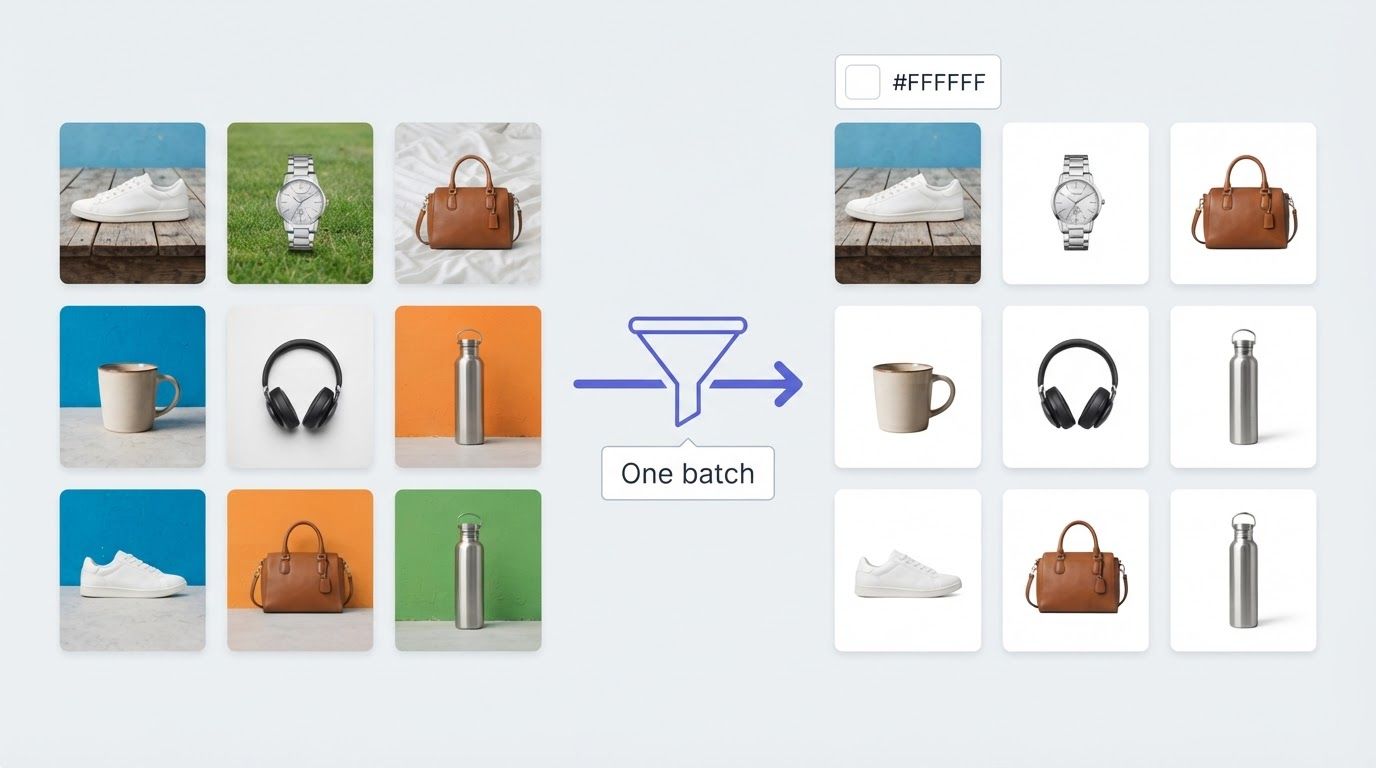
A white background is the standard for product photography, professional headshots, ID photos, and marketplace listings. Whether your image has a black background, a cluttered scene, or a colored studio backdrop, switching it to white takes a few seconds with the right tool.
This guide covers how to change any image background to white, including black backgrounds, dark backgrounds, and complex scenes.

Why White Image Backgrounds Are Used
White is the default background for most professional and commercial image contexts:
E-commerce marketplaces. Amazon, eBay, Shopify, and Etsy all recommend or require pure white backgrounds for product listings. A white image background keeps the focus on the product, looks consistent across listings, and meets platform image guidelines.
Professional headshots and ID photos. Passport photos, visa applications, LinkedIn profile pictures, and corporate headshots often require a clean white or near-white background. Reshooting in a studio is expensive; changing the image background digitally takes seconds.
Product catalogs and marketing materials. When building a catalog or ad set, consistent white backgrounds across every image creates a professional, unified look without requiring every photo to be shot in the same conditions.
Presentations and documents. Images placed in slides or documents look cleaner on white, because they blend naturally with the page background rather than creating a colored box around the subject.
How to Change an Image Background to White
Step 1: Upload your image
Go to BatchRemover and upload your photo. JPG, PNG, and WebP formats are supported. No account is required for single image processing.


Drag and drop images or folders
Step 2: AI removes the existing image background
The AI automatically detects the subject and removes the image background, whether it's black, dark gray, colored, or a complex scene. The subject is isolated on a transparent layer, ready for a new background.

Step 3: Set the image background to white
In the editor, select a solid background color and set it to white (#FFFFFF). The white background is applied instantly across the entire canvas.
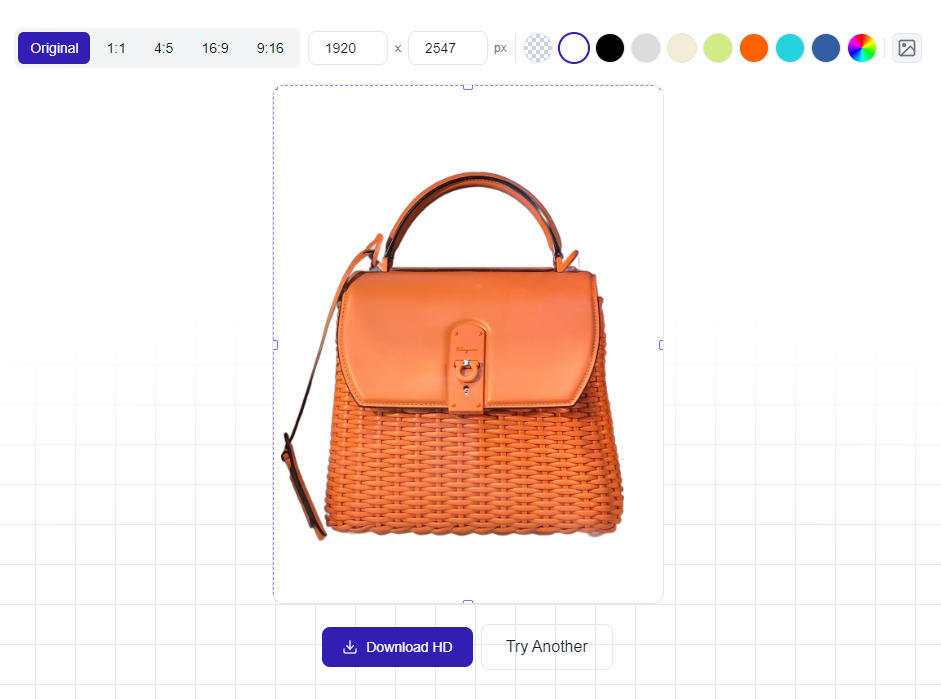
Step 4: Export as JPG, PNG, or WebP
Download the result in your preferred format. JPG is the standard for white background images, keeping file sizes small. WebP offers even better compression with similar quality, making it ideal for web use. Use PNG if you want to keep the option to change the image background color later.
Changing Specific Image Background Colors to White
Black image background to white
Black backgrounds are common in studio photography, product shots on dark surfaces, and screenshots. Changing a black image background to white is one of the most searched background edits, and AI handles it cleanly because the contrast between subject and background is usually very high, giving the AI a clear edge to work with.
Dark or gray image background to white
Gray studio backdrops and dark gradients are treated the same way: the AI removes the existing image background and the white fill replaces it. The result is a clean white regardless of how dark the original was.
Colored image background to white
Colored backgrounds, whether it's a blue studio backdrop, a green screen, or a natural outdoor scene, are all handled by the AI subject detection. The process is the same: remove the image background, apply white.
Complex or cluttered backgrounds
For photos taken in real environments, like an office, a street, or a room, the AI still identifies the main subject and removes the surrounding elements. The cleaner the original lighting and the more distinct the subject, the sharper the result.
Tips for Clean White Background Results
Check the edges after processing. On dark backgrounds, the edge pixels around the subject often contain traces of the original image background color. Zoom in after processing to verify the edges are clean, especially around hair, fur, or fine textures.
Use good source lighting. Images where the subject is well-lit and clearly distinct from the background produce the best results. Flat or low-contrast lighting makes it harder for the AI to separate subject from image background.
Choose the right export format. JPG and WebP both work well for white background images and keep file sizes small. WebP is the better choice for web pages and online listings. PNG is larger but preserves the ability to re-edit the background later. All three formats are available on download.
Match the white. Most platforms that require white backgrounds specify pure white (#FFFFFF). Some product photos look better on off-white or light gray. Check the platform requirements before exporting.
Frequently Asked Questions
How do I change a black image background to white?
Upload your image to BatchRemover, let the AI remove the black image background, then set the background color to white in the editor. Download as JPG. The process works the same for any dark or colored image background.
Can I make a photo with a white background without reshooting?
Yes. AI background replacement lets you change any existing image background to white without a studio or reshooting. Upload the photo, remove the original background, apply white, and download. The result is equivalent to a white-background studio shot for most use cases.
Is this free?
Single image processing is free with no signup required. For processing multiple images at once, bulk background removal is available on paid plans.
What white value should I use for Amazon product photos?
Amazon requires a pure white background, which is RGB (255, 255, 255) or hex #FFFFFF. In BatchRemover, selecting white from the color picker gives you pure white by default.
Will the white image background look natural?
On well-lit product photos, yes. The key factor is edge quality: if the AI cuts the subject cleanly, the white background looks like the product was shot in a studio. On photos with heavy shadows or motion blur at the edges, some manual cleanup may help.
Can I change the image background to white on my phone?
Yes. BatchRemover runs in a mobile browser on iPhone, Android, and tablet without an app download. Upload from your camera roll, apply the white background, and download directly to your device.
What if I want to remove a white background instead of adding one?
That's the reverse operation. If your image already has a white background and you want to cut it out to get a transparent PNG, see our guide on how to remove a white background from an image.
What if I want to add a different background instead of white?
After removing the image background, you can apply any solid color, or browse free white background images to use as a backdrop. The editor supports both solid colors and custom background images before you download.