
First, a distinction that saves you reading the wrong article. If you want to delete backgrounds from many images and end up with transparent PNGs, see our guide on bulk background removal. This article is about the other job: replacing the background on every image with the same new one, pure white for Amazon, an exact brand color for your store, one consistent backdrop across an entire catalog.
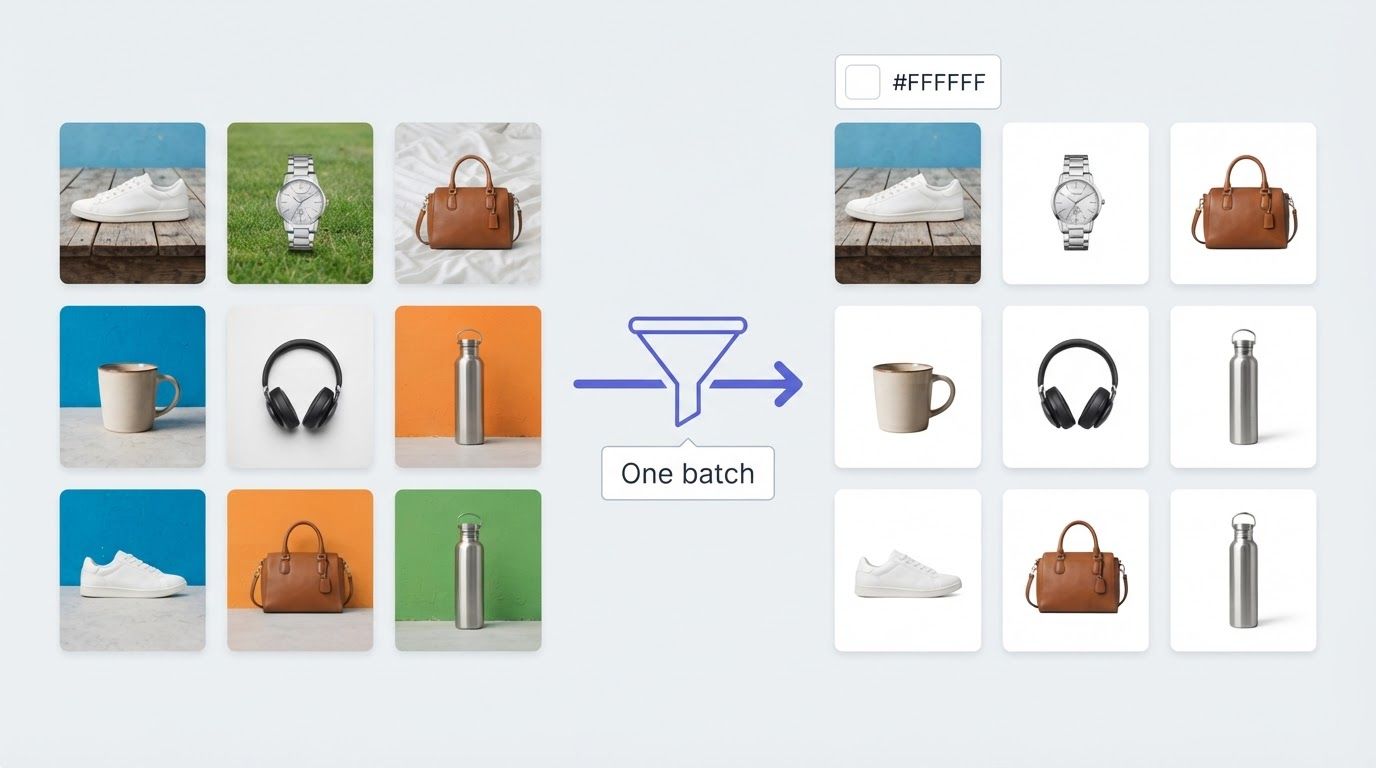
That job has a scale problem. Doing it well on one image is easy. Doing it identically on two hundred is where most workflows fall apart, so this guide walks through how to change background of image files by the batch instead of one at a time.
Why Sellers Change Background of Image Files at Scale
Marketplace rules. Amazon requires the main product image to sit on pure white, RGB (255, 255, 255), HEX #FFFFFF. Not off-white, not light gray. eBay, Etsy, and Walmart are less strict on paper but consistently reward clean, uniform images with better placement and conversion.
Brand consistency. On your own Shopify or WooCommerce store, nothing looks more improvised than product photos shot against five different backgrounds. One brand color behind every image is the cheapest visual upgrade a small store can make.
Supplier chaos. Dropshippers and resellers inherit images from many suppliers: different lighting, different backdrops, different quality. One bulk pass to change background of image files from every supplier is how those become one catalog instead of a collage.
The Time Math of One-by-One Editing
Editing a single product photo takes one to three minutes once you are practiced: upload, remove, recolor, export, rename. Multiply by a 200-SKU catalog and you are looking at a full working day of repetitive clicking, and that is the optimistic case.
The less obvious cost is drift. Do 200 images by hand across several sessions and the whites will not match, some exports will be JPG and some PNG, and a few filenames will break your SKU mapping. Batch processing is less about speed and more about the fact that one setting applied everywhere cannot drift, which is the real reason to change background of image files in bulk rather than in sequence.
Change Background of Image Files in Bulk: The Workflow
One honest note before the steps: in BatchRemover, single images are free, but batch processing is a paid feature. Lifetime credit packs handle up to 30 images per batch, and Yearly plans handle up to 60 per batch and add folder upload. Details are on the pricing page.
Step 1: Organize your files before you upload
Name files by SKU or product handle before processing, not after. Your originals come back with the same filenames they went in with, only the extension changes, so a clean naming scheme going in means the processed set drops straight into your store's import flow.
Step 2: Upload the batch
Drag in up to 30 or 60 images depending on your plan. On Yearly plans you can select an entire folder instead of picking files by hand, which matters more than it sounds at catalog scale. The AI removes the background from every image in the run, and results appear as a grid of cards: this single run is how you change background of image files sixty at a time instead of one by one.
Step 3: Set one background for the whole batch
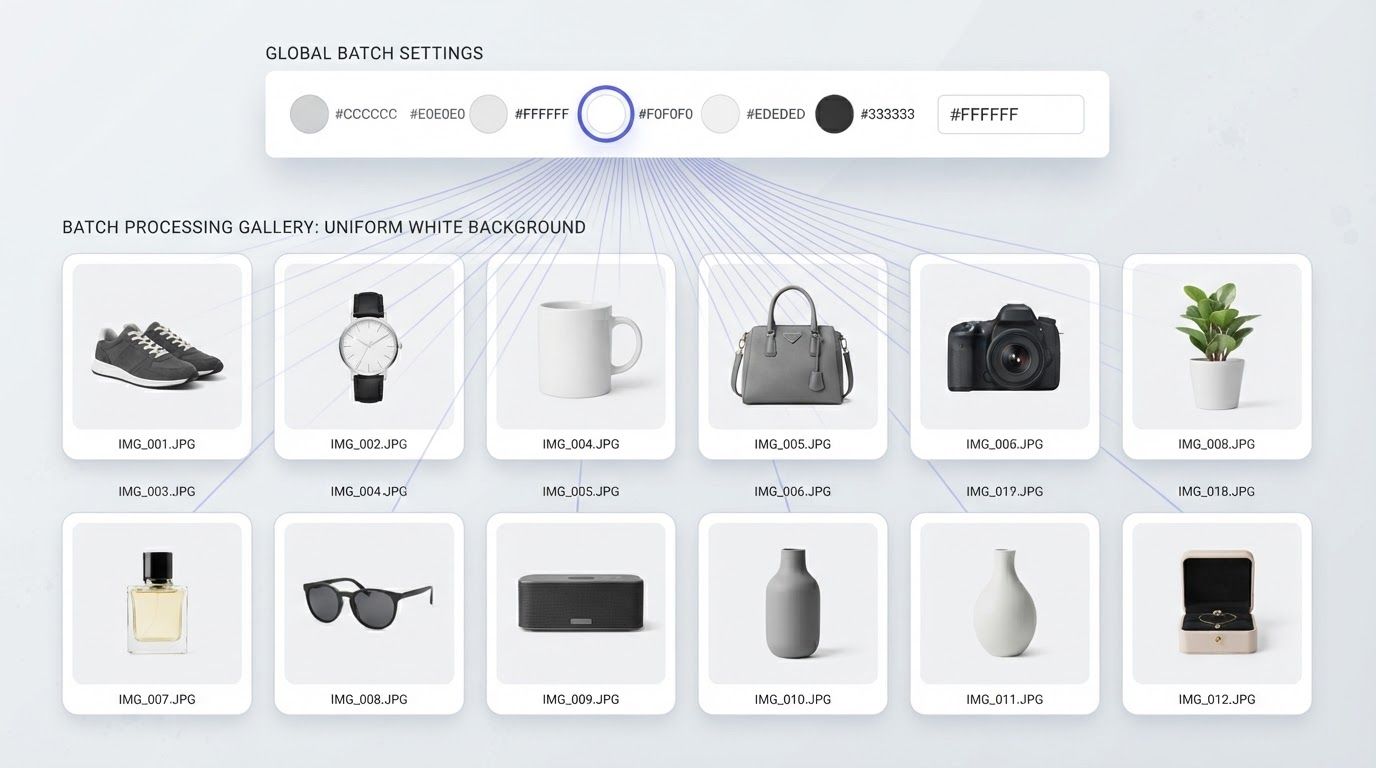
This is the step that makes it a workflow instead of 60 separate edits. A global settings bar sits above the results: pick white, or open the color picker and type your exact HEX value, and every card in the batch updates to that background at once. The removal already happened, so the change is instant across the grid.
Step 4: Override the exceptions
A few images usually need something different: a lifestyle shot that should stay transparent, a hero image that gets the accent color. Open any single card and change its background individually; that card locks to its own setting while the rest of the batch keeps following the global one, and you can unlock it to fall back in line later.
Step 5: Download everything as a ZIP
Pick an export format and download the whole batch in one archive. JPG is the right default for solid backgrounds like marketplace white. If any image was left transparent, JPG cannot hold it, and that image falls back to PNG automatically instead of coming out with a wrong white box.
What Bulk Background Changes Actually Cost
Nobody offers unlimited free batch processing, so if you need to change background of image files at volume, the real question is what shape the cost takes:
| Model | How it bills | Watch out for |
|---|---|---|
| Per-image credits (remove.bg style) | You buy credits, roughly 0.20 to 0.40 EUR per image at typical volumes | Costs scale linearly forever; a 120-image batch can run 40+ EUR |
| Monthly subscription (Photoroom, Pixelcut, Picsart) | Flat monthly or annual fee for batch access | You pay in the months you process nothing |
| Credit packs and yearly credits (BatchRemover) | Lifetime packs from about $0.18 per image that never expire, Yearly plans from about $0.077 per image | Batch caps of 30 or 60 images per run |
If you process a handful of images a year, stay on free single-image tools and spend nothing. Batch pricing exists for catalog work, and at that volume the per-image math is what matters: check it against your actual monthly image count, not the headline price.
Keeping a Catalog Consistent
Batch tools make it easy to change background of image files once; these habits keep the results matching for months:
One HEX value, written down. "White" is not a spec; #FFFFFF is. Same for your brand color. Set it once in the global bar and reuse the exact value every batch, so images processed months apart still match.
Check edges on dark colors. A pale halo around hair or product edges is invisible on white and obvious on navy or black. Preview one representative image on your darkest background before committing the whole batch.
Match format to destination. JPG for marketplace listings on solid colors, WebP for your own storefront where load speed counts, PNG only when something downstream still needs to edit the image.
Keep the originals. Store the untouched supplier photos separately. When a marketplace changes its rules or your brand color shifts, you re-run the batch from the originals rather than recycling processed images.
Frequently Asked Questions
How do I change background of image files in bulk for Amazon?
To change background of image files in bulk for Amazon, upload the batch, set the global background to white, and confirm the value is #FFFFFF, which is what Amazon means by pure white for main images. Export the batch as JPG and the set is listing-ready. The same run works for eBay and Etsy, which accept white everywhere.
Do I have to set the background for every image separately?
No, that is the point of the global settings bar: choose one color and the tool will change background of image after image across the batch automatically. You only touch the individual cards that need an exception.
Is it free to change background of image files in bulk?
No, and it is not free anywhere once you look closely; free tiers cap you at single images or a trial handful. In BatchRemover, one image at a time is free with no signup, and batch runs of 30 or 60 images are what the paid plans are for.
Can I upload a whole folder at once?
On Yearly plans, yes: point the tool at a folder and it takes the images inside, up to the 60-per-batch cap. Lifetime credit packs use standard multi-file selection with a 30-image cap per batch.
What if a few images need a different background than the rest?
Edit those cards individually after the global setting is applied. Each edited card locks to its own background and ignores later global changes until you unlock it, so the exceptions survive while you keep adjusting the rest.
Will my filenames survive the batch?
Yes. Every processed image keeps its original filename with only the extension swapped, which is what keeps SKU-named files usable. There is a short write-up of that behavior here.
Run Your First Batch
Name your files, upload a batch, set one background, and download the ZIP. It is the fastest way to change background of image files at catalog scale, and the difference between this and a day of one-by-one editing is the difference between owning a catalog and being owned by it.