Changing the background of an image used to be a Photoshop job: pen tool, layer masks, half an hour per photo. Today it is a browser tab and about thirty seconds, and for a single image it does not have to cost anything or ask for your email.
This guide covers how to change background of image files three ways: with a free online AI tool, on your phone without installing an app, and in free desktop editors when you want full manual control. It also covers the traps that make many "free" background changers not actually free at download time.
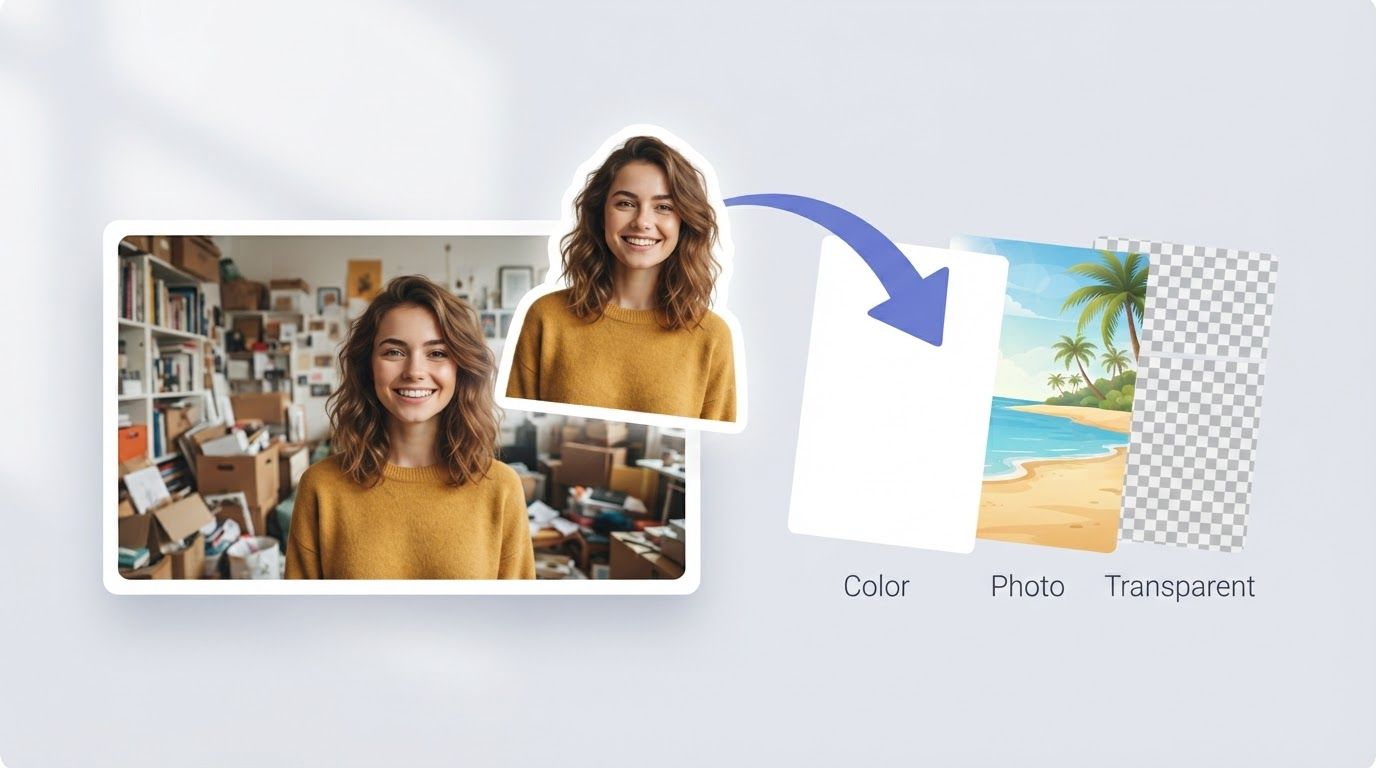
The 30-Second Answer
For most photos, the fastest way to change background of image files is an AI changer in your browser: upload the image, let the AI cut out the subject, pick a new background, and download. BatchRemover does this free for single images, at full original resolution, with no watermark and no account. The other two methods below exist for the moments you want to stay inside your phone's gallery, or need pixel-level manual control.
Method 1: Change Background of Image Online with an AI Tool
Best for: product photos, portraits, listings, avatars, and pretty much everything else.
Step 1: Upload your image
Go to BatchRemover and drop in a JPG, PNG, or WebP. Single images need no account and no credit card.


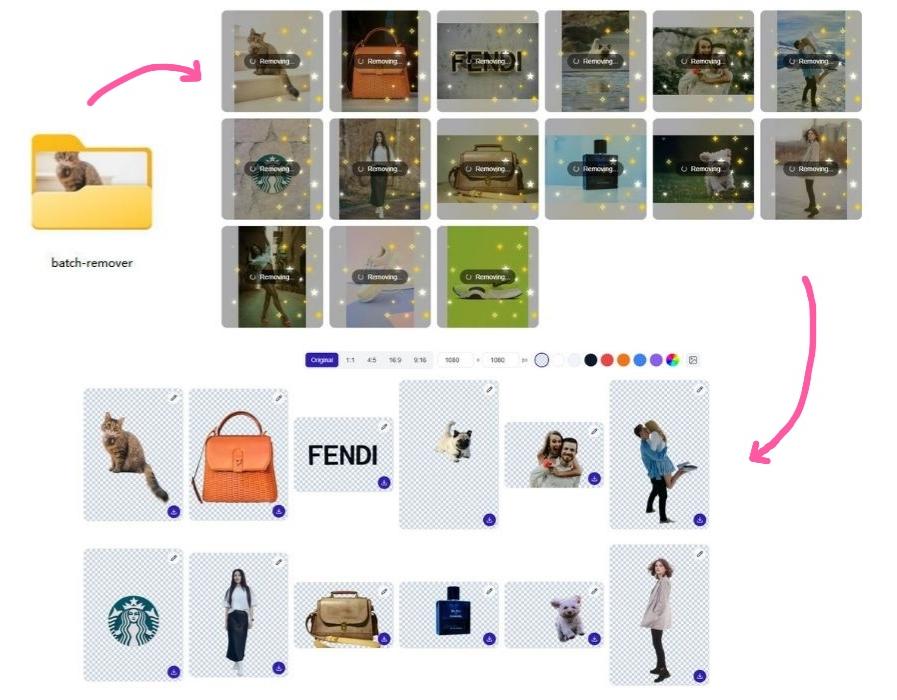
Drag and drop images or folders
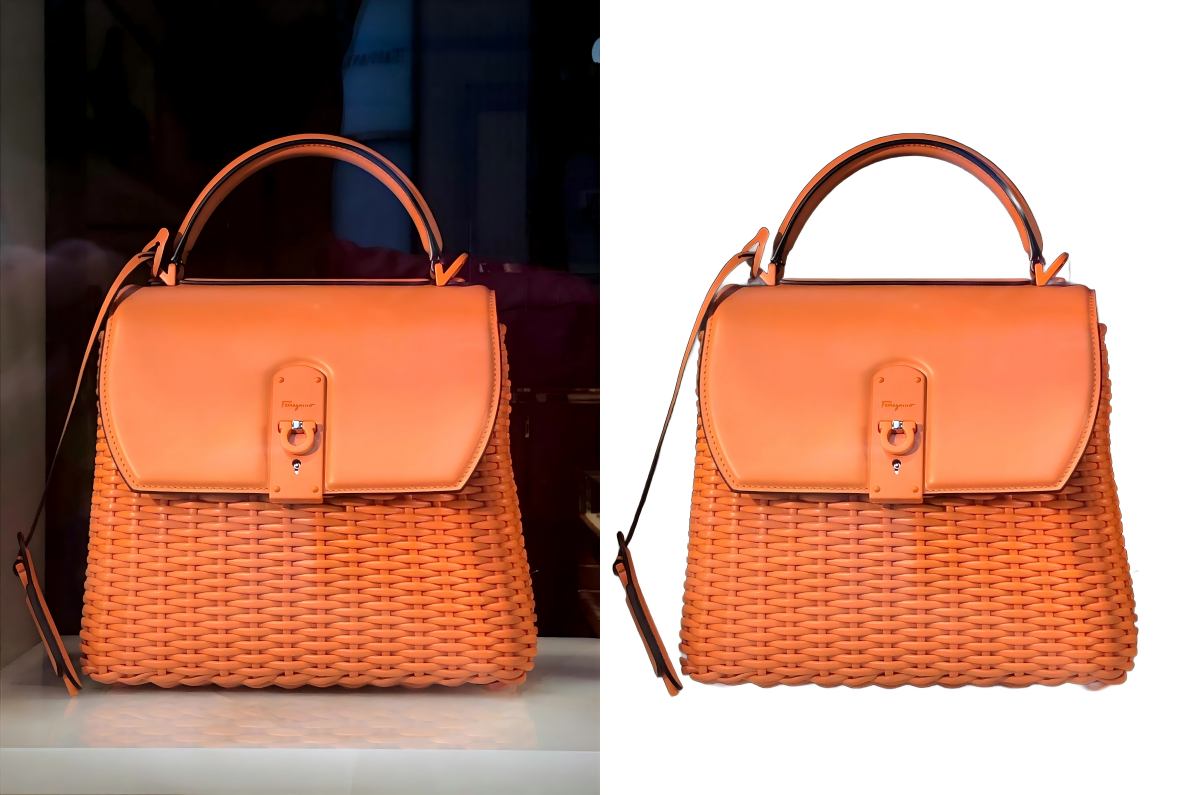
Step 2: The AI removes the old background
The AI detects your subject and erases everything behind it, including cluttered rooms and colored backdrops. Edge pixels that blended into the old background are cleaned up during removal, which matters later if your new background is dark.
Step 3: Pick the new background
You get three kinds of replacement, all free:
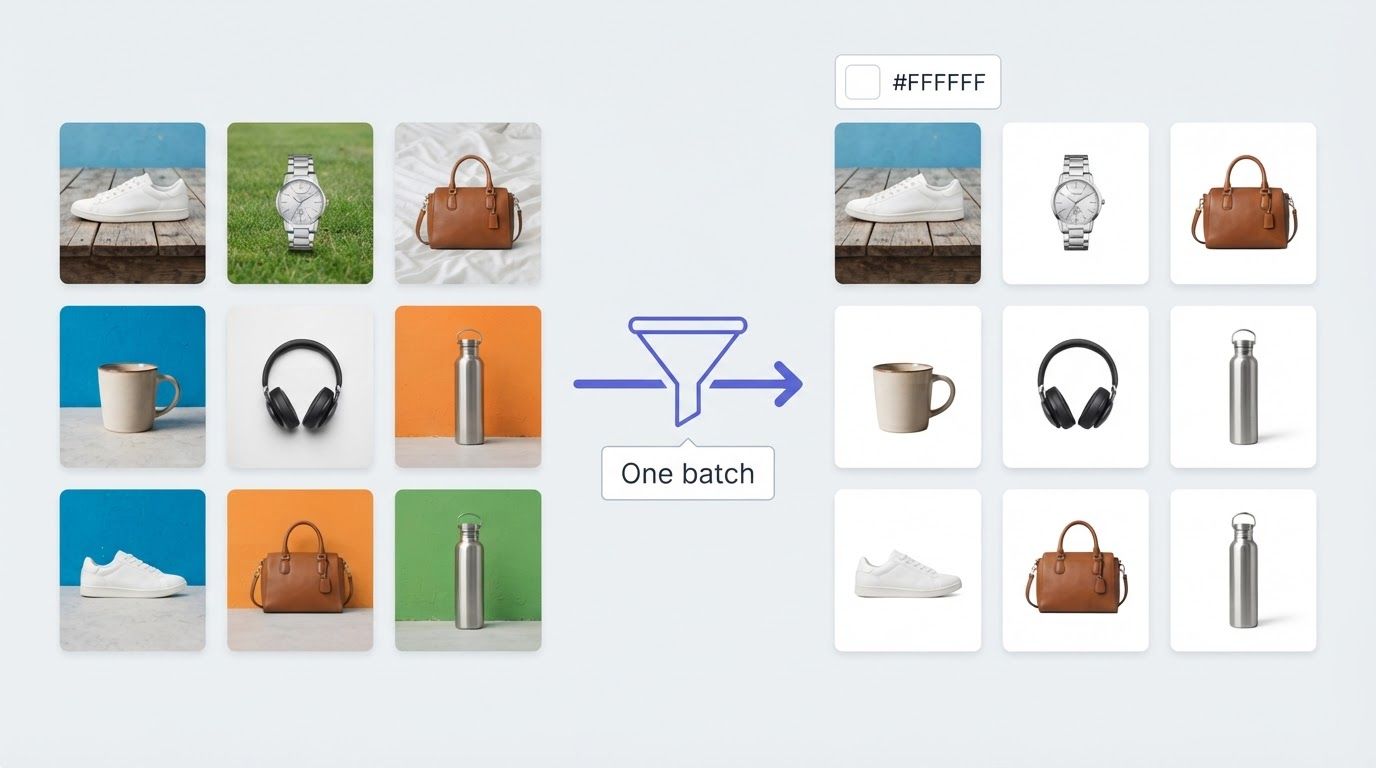
- A solid color. One-click presets for white, black, and common shades, plus a HEX input for exact values like Amazon's required pure white (#FFFFFF) or your brand color.
- A photo. Upload any image of your own as the new backdrop, or grab a free one from the background library and upload it the same way.
- Nothing at all. Keep it transparent and download a PNG, the right choice if you plan to place the cutout in a design later. More on that in our transparent background guide.
The removal runs once, so every background you try previews instantly. Test five colors and two photos before you commit; it costs nothing.

Step 4: Download at full resolution
Export as JPG for solid-color backgrounds, or PNG/WebP if you kept transparency. The download matches the resolution you uploaded. That last part is worth double-checking with any tool you use, because several popular free tiers quietly cap downloads at a fraction of a megapixel. More on that below.
Method 2: Change Background of Image on Your Phone (No App)
Since iOS 16, you can long-press the subject of a photo in the Photos app and lift it off the background. It feels like magic, but there is a catch: iOS can remove a background, it just has no built-in way to put a new one behind it. You end up with a cutout sticker and nowhere to take it.
The way to close that loop without installing anything is the browser method above. BatchRemover runs in Safari and Chrome on any phone: upload straight from your camera roll, pick the new color or photo, and download the finished image back to the roll. No app, no account, and the result comes back at full resolution.
On Android, some gallery apps (Google Photos on Pixel devices, Samsung Gallery) bundle their own background erasers, but the features and quality vary a lot by device and model year. The mobile browser route behaves the same on every phone, which is why it is the answer we recommend.
Method 3: Free Desktop Editors (Photopea and GIMP)
If you want manual control over every pixel, two free options do real work:
- Photopea is a free Photoshop clone that runs in your browser. Use Select Subject, invert the selection, delete the old background, then drag a new image or color fill onto a layer underneath.
- GIMP is a free desktop editor. The workflow runs through Fuzzy Select or Paths, a layer mask, and a new background layer. Powerful, but the learning curve is measured in evenings, not minutes.
The honest take: for a routine product shot or portrait, the AI route is the faster way to change background of image files, with equal or better edges. Manual editors earn their keep on tricky composites, artistic blending, and repair work, not on everyday background swaps.
The Catches Hiding in "Free" Background Changers
We ran six popular tools that offer to change background of image files for free over the same test image, and the pattern was consistent: processing is free, and the catch appears at download. The full numbers are in our free background remover test, but the short version:
- Resolution caps. remove.bg limits free downloads to 0.25 megapixels, roughly 625 by 400 pixels. Other tools downscale more quietly.
- Signup walls. Adobe Express processes your image for free, then requires an account to download it. Canva wants the account before you even upload.
- Watermarks and one-time exports. Some free tiers watermark the result or allow exactly one clean export before the paywall arrives.
A 30-second test for any tool: upload a photo you know the pixel size of, download the free result, and check its dimensions. If the numbers shrank, you found the catch.
Which Method for Which Job?
Four common situations, and the quickest way to change background of image files in each:
| Situation | Best method |
|---|---|
| Product photo, portrait, avatar, listing | Online AI tool (Method 1) |
| On your phone, nothing installed | Mobile browser (Method 2) |
| Complex composite, artistic control | Photopea or GIMP (Method 3) |
| Dozens or hundreds of images | Bulk workflow, a paid feature |
Frequently Asked Questions
How can I change the background of a picture for free?
Use a browser-based AI tool to change background of image files for free: upload the picture, let the AI remove the old background, choose a new color or photo, and download. With BatchRemover a single image is free with no signup, no watermark, and no resolution cap. Free desktop editors like Photopea work too, they just trade minutes of manual work for the same result.
How do I change a photo background without Photoshop?
Any of the three ways to change background of image files in this guide skips Photoshop entirely. The AI route is the fastest: the subject detection that Photoshop does with Select Subject happens automatically on upload, and the new background is applied in one click instead of a layer stack.
Can I change background of image files on my iPhone without an app?
Yes, in the browser. iOS itself can lift a subject off a photo but cannot put a new background behind it, so open BatchRemover in Safari, upload from your camera roll, pick the new background, and save the result back to your phone. Nothing to install.
How do I change background of image files without losing quality?
Two things decide this: the tool must not downscale your download, and your export format should fit the background type. BatchRemover returns the resolution you uploaded on every plan, including free. Choose JPG for solid colors and PNG or WebP for transparency, and avoid tools that reserve full size for paid tiers.
Is there a free app to change the background of a photo?
You do not need one. App stores are full of background changers with subscription trials, but a mobile browser can change background of image files with nothing to install and no trial to cancel. If you specifically want an app-free workflow on iPhone or Android, Method 2 above is exactly that.
Can I change background of image files in bulk?
Yes, but bulk is where free ends. Single images are free without an account; paid plans process up to 30 or 60 images per batch, apply one background to the whole set, and export a ZIP. The complete workflow is in our bulk background change guide.
Can I put my photo on a different background, like a beach or an office?
Yes. After the AI removes the old background, use the image option to upload any photo as the new scene, your own shot or a free one from the background library. The subject is composited onto it and scaled to fill the frame, and you can try different scenes until one looks right.
Change the Background of Your Image Now
Upload one photo and run the whole flow end to end: AI removal, a new color or scene, and a full-resolution download. No signup, no watermark, and the fastest way to change background of image files without touching Photoshop.