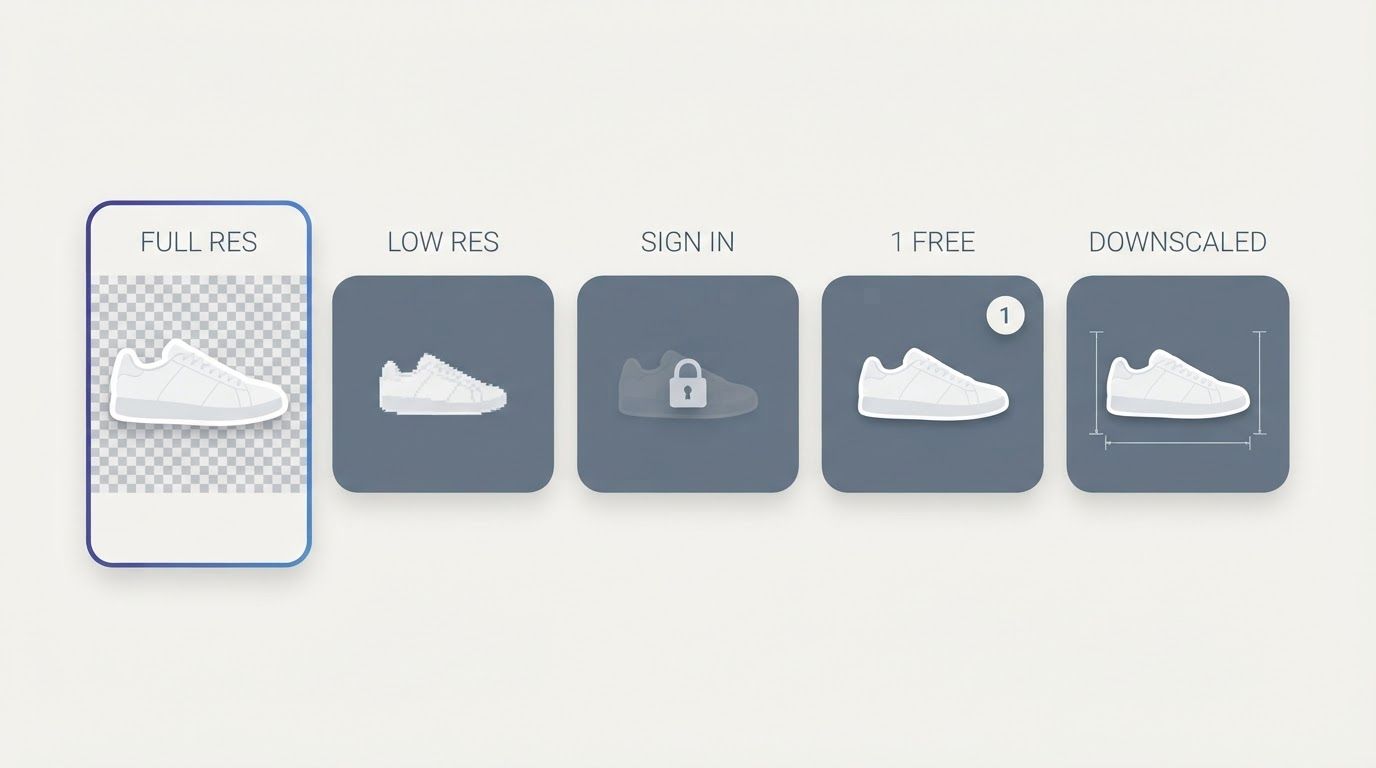
Search "free background remover" and you'll get dozens of results all claiming to be free. Upload a photo, watch the AI do its work, and then the download button asks you to create an account. Or the downloaded file has a watermark. Or it's capped at 0.25 megapixels.
We tested six of the most popular tools without creating an account on any of them, to see where the walls actually appear.
What We Were Testing For
Three things matter when a tool claims to be free with no signup:
- Can you remove a background without creating an account?
- Is the downloaded file full resolution, with no watermark?
- Is there any hidden step that forces a login before you get your result?
We used the same test image across all tools: a product shot at 1920×2884px.
The Results
BatchRemover
BatchRemover processes images without an account and downloads the full-resolution result without a watermark. Our 1920×2884px test image came back at the original resolution. No login prompt appeared at any step: not on upload, not on processing, not on download.
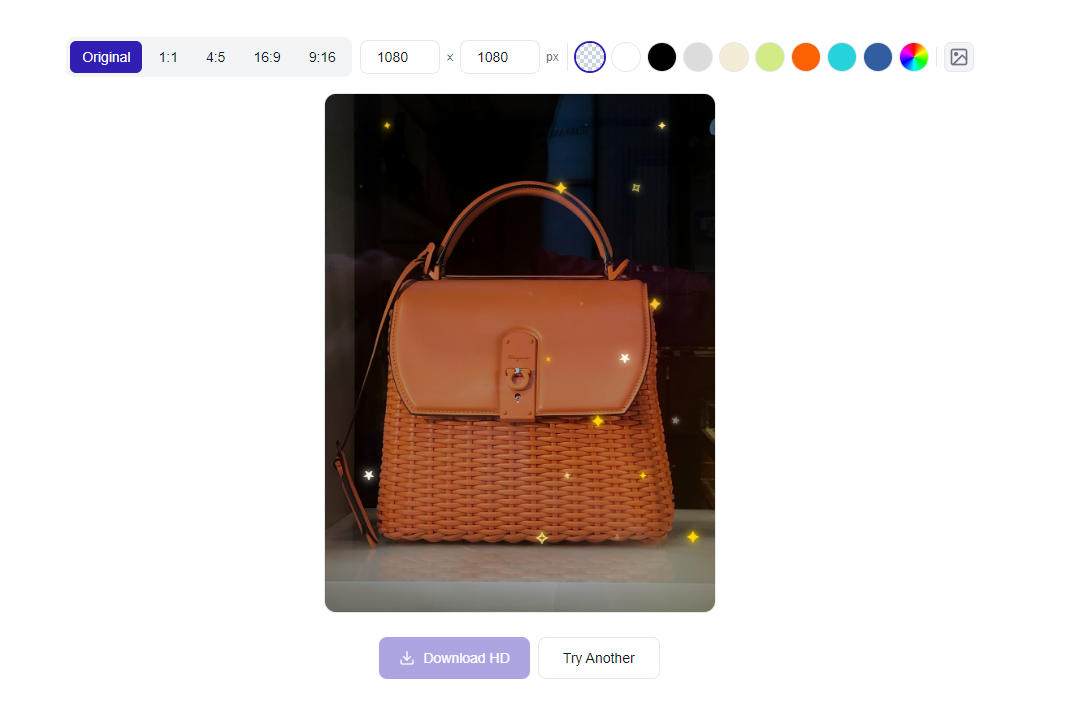
The tool also lets you choose your export format before downloading: PNG for transparent backgrounds, JPG for white backgrounds with smaller file sizes, or WebP for the best compression with quality. Background color replacement and canvas resizing are also available, all without an account.
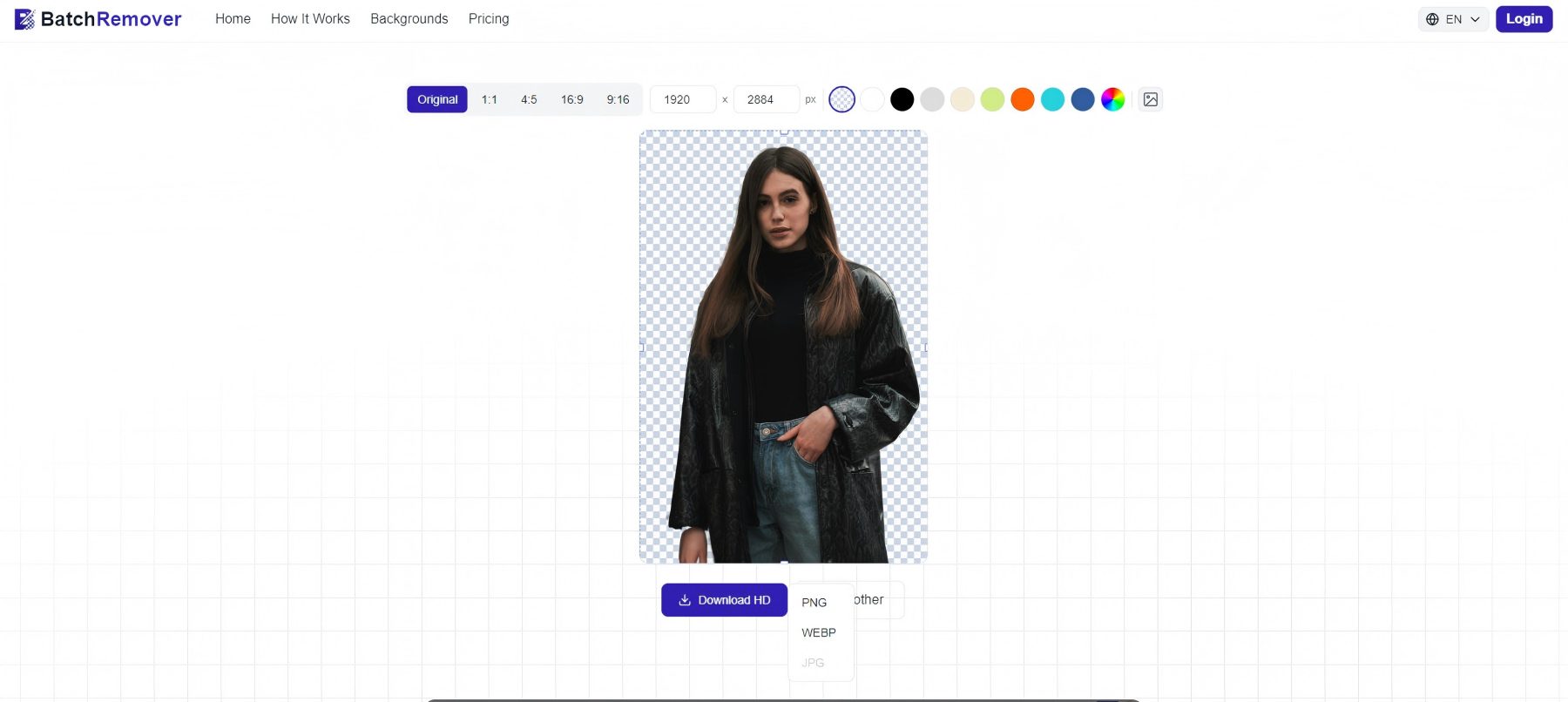


Drag and drop images or folders
Remove.bg
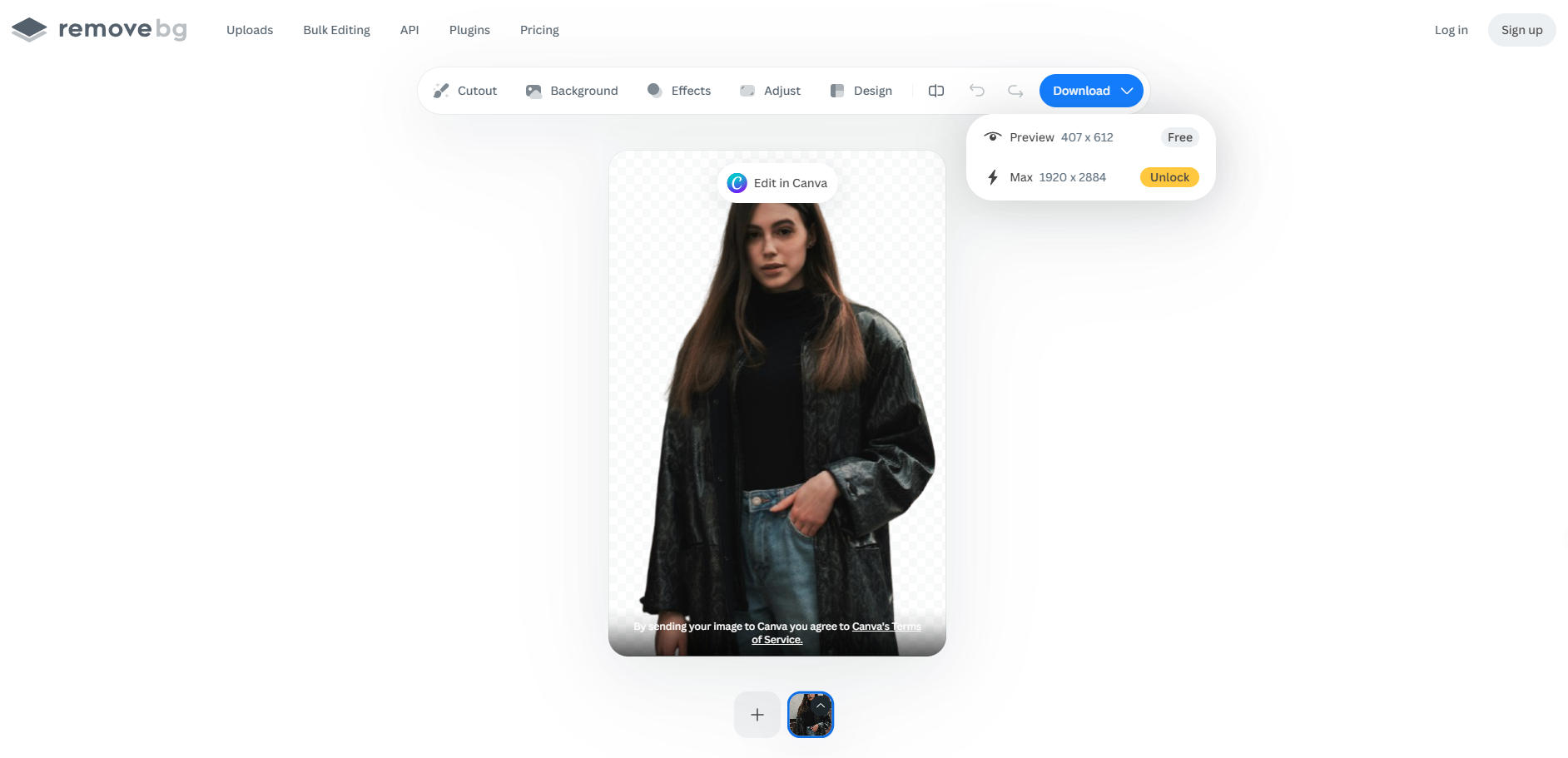
Remove.bg processes images without an account, and the result is genuinely clean with good AI quality. The problem is the download. The free tier caps output at 0.25 megapixels, scaled proportionally to your image. For our 1920×2884px test image, the free download came out at roughly 408×612px, about one-fifth of the original. Full resolution requires a paid credit or a registered account.
For small web thumbnails, this might be acceptable. For anything going into a product listing or print, it isn't.
Canva
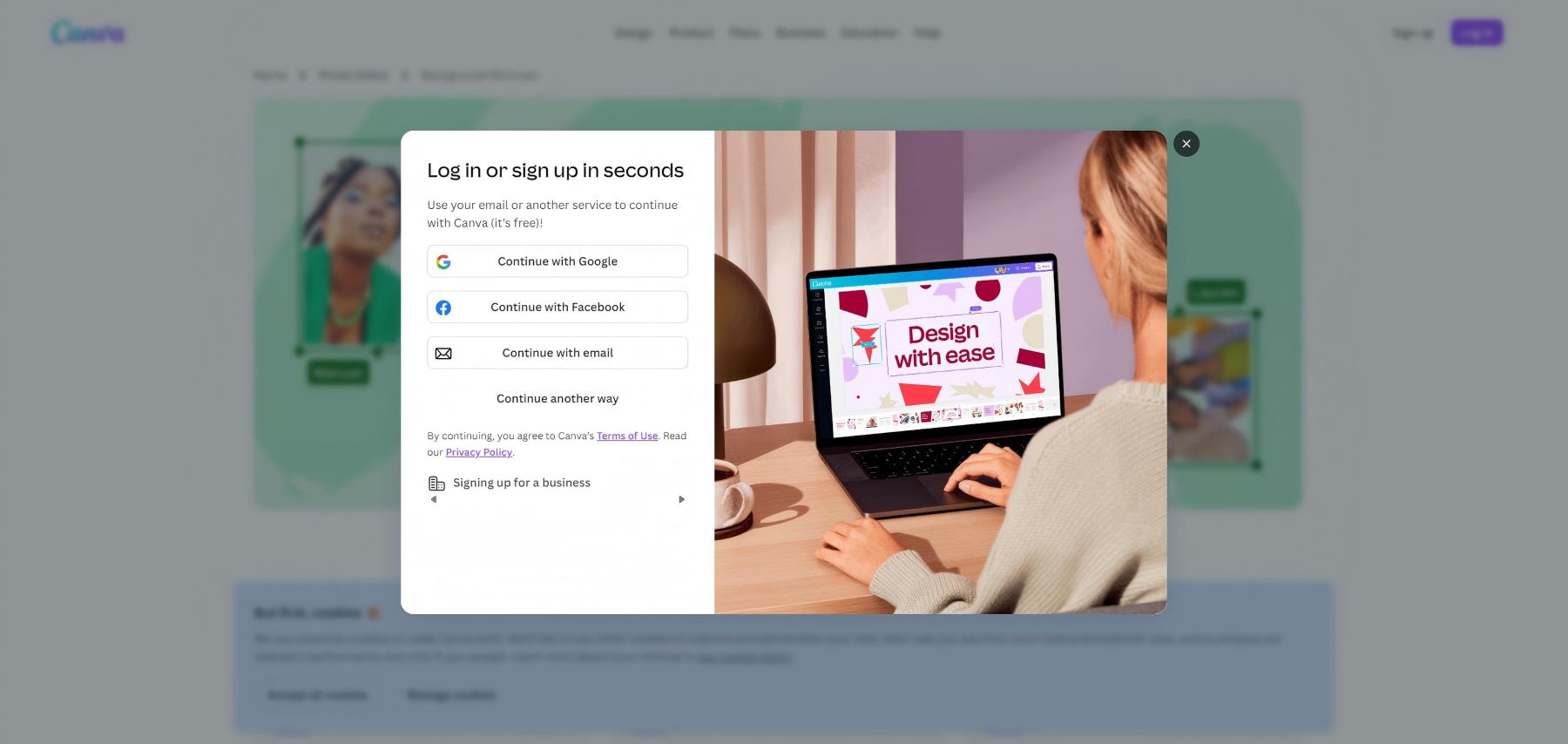
Canva's background remover requires a free account to access. Once logged in, the tool works and downloads at full resolution, but there's a catch with transparency. The free tier gives you one transparent PNG download. After that, you can still download, but the transparent background is replaced with white. If you need multiple transparent exports, you'll need a Pro plan.
Verdict: Account required + transparent PNG limited to 1 free download.
Adobe Express
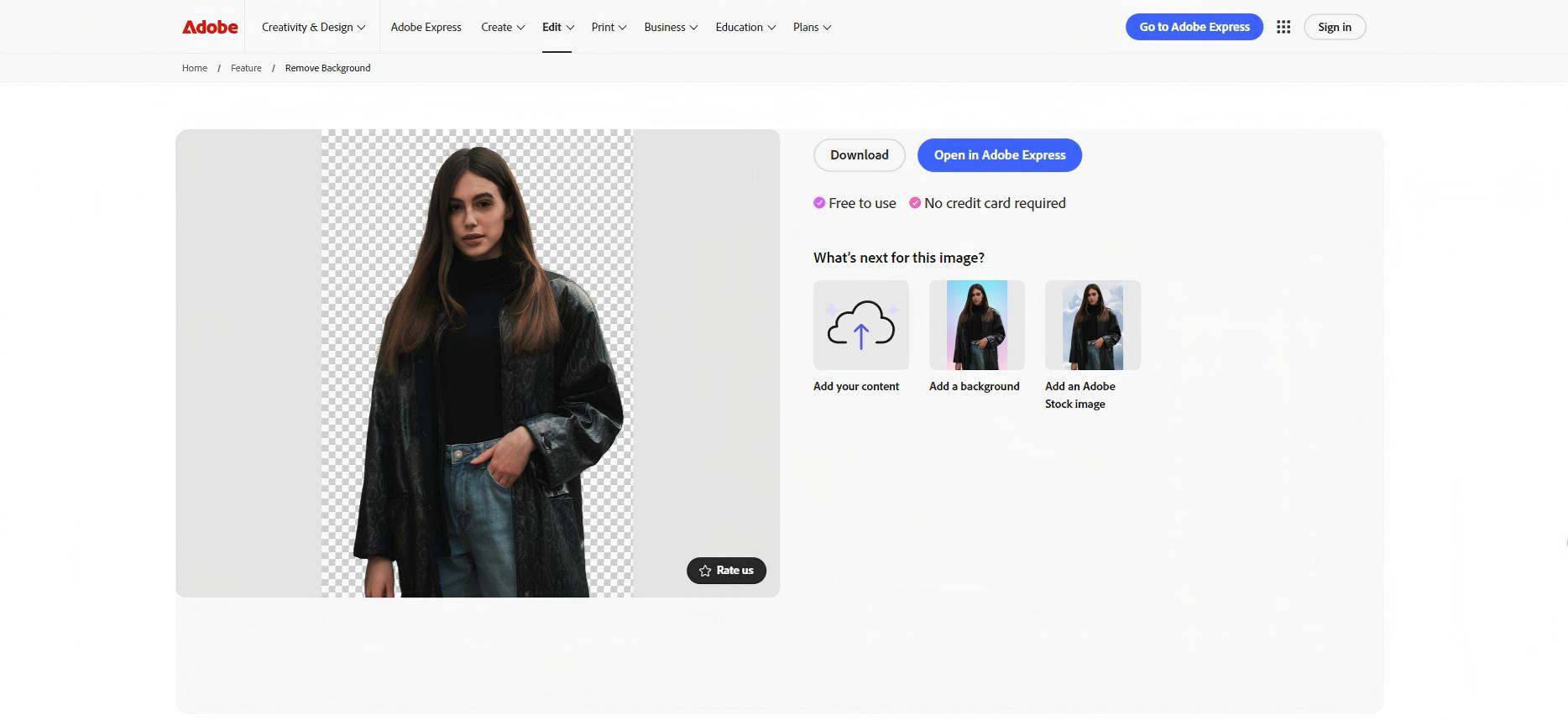
Adobe Express lets you upload and process images without an account; the background removal works fine. The wall appears at the download step: clicking download triggers a sign-in prompt. You have to create an Adobe account before you can save the result.
Verdict: No signup to process, but account required to download.
Removal.ai
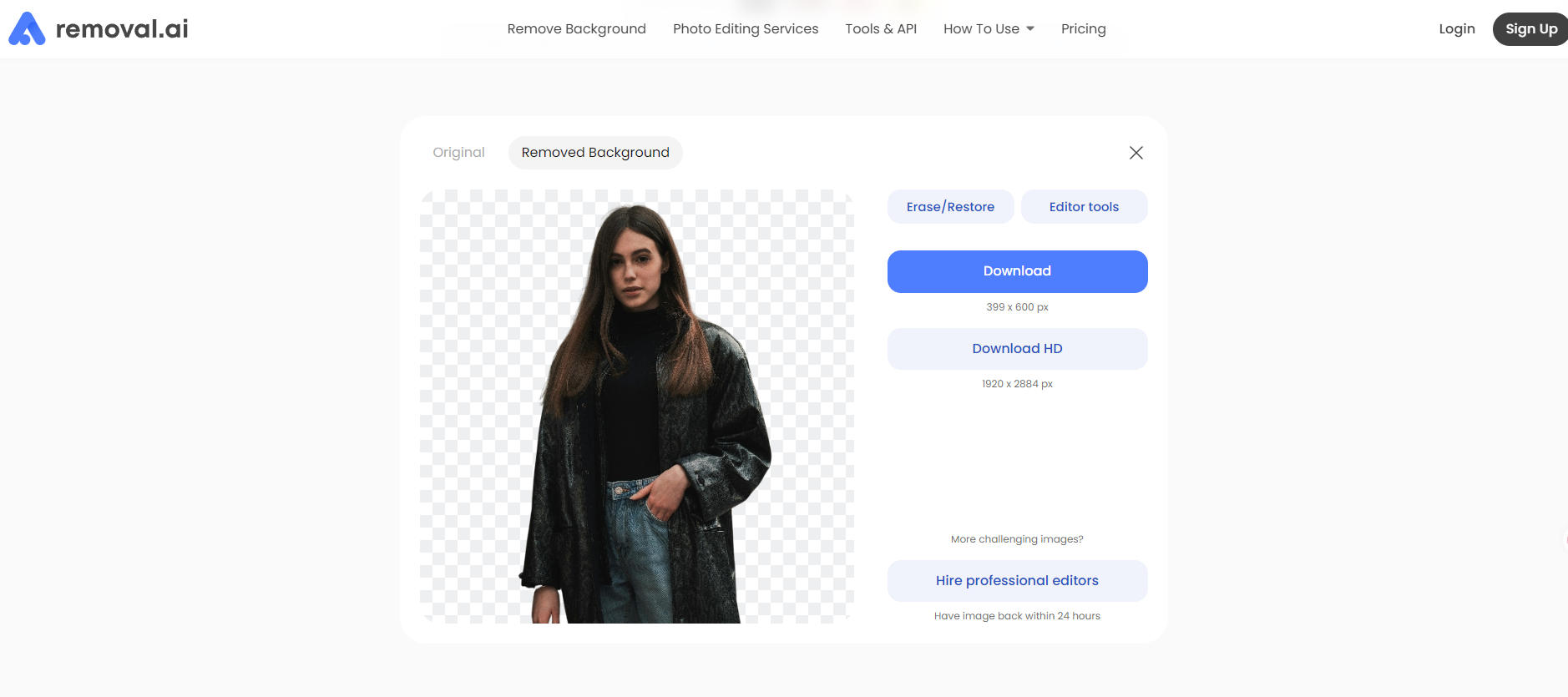
Removal.ai works without an account. The background removal is fast and the quality is solid. The catch is resolution: the free download button gives you 399×600px, while the "Download HD" option at 1920×2884px requires a paid plan.
Verdict: No signup needed, but free download is capped at 399×600px, about 21% of the original dimensions.
PhotoRoom
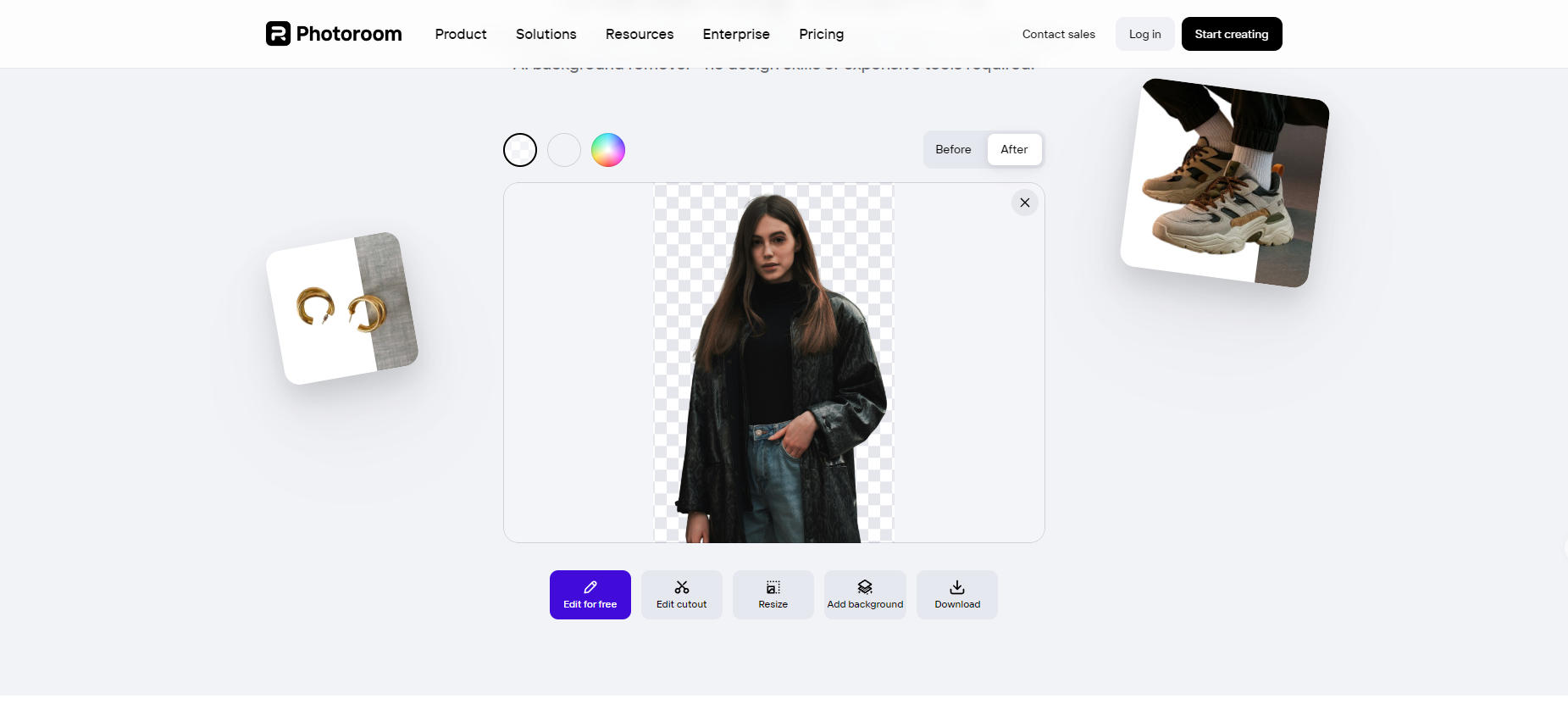
PhotoRoom works without an account and the download is free, with no login prompt at any step. The output is slightly reduced from the original: our 1920×2884px image downloaded at 1598×2400px, about 83% of the original dimensions. Not a dramatic cut, but not lossless either.
Verdict: No signup needed, but output is downscaled to roughly 83% of original size.
What the Pattern Looks Like
Across these six tools, the signup wall appears at one of three points:
| Tool | Where the wall appears | Full comparison |
|---|---|---|
| BatchRemover | No wall: full resolution, no account, no watermark | — |
| Remove.bg | Free download scaled to ~21% of original size (0.25MP cap) | remove.bg alternative |
| Canva | Account required + transparent PNG limited to 1 free download | Canva alternative |
| Adobe Express | Account required at download step | Adobe Express alternative |
| Removal.ai | No signup, but free download capped at 399×600px | — |
| PhotoRoom | No signup, but output downscaled to 1598×2400px (83% of original) | Photoroom alternative |
The most common tactic is letting you process the image for free, because watching the AI work is part of the sales pitch, and then restricting the download. By that point you've already spent time on the tool and are more likely to sign up.
Why People Look for No-Signup Options
The reasons vary more than you'd expect:
One-time use. Someone needs a single product photo cleaned up for a listing. Creating an account for a task they'll do once, on a site that will then send them marketing emails, isn't worth it.
Privacy. Uploading an image to a web service means that image hits their servers. Attaching your email to that transaction creates a more permanent record. For sensitive documents or personal photos, some users prefer not to create that paper trail.
Speed. Signup flows, email verification, and onboarding take time. For someone who needs a result in the next two minutes, that's a real friction point.
Testing before committing. If you're evaluating tools for a workflow, you want to see the actual output quality before you give anyone your email address.
What to Look for in a Genuinely Free Tool
Beyond the no-signup question, a few things separate genuinely free tools from ones that use "free" as a marketing word:
Full resolution output. The AI processes your full image; the question is whether the downloaded file matches. Check that the downloaded dimensions match your upload.
No watermark. Some tools are transparent about this (Fotor shows a clear "remove watermark with Pro" prompt). Others add subtle watermarks in corners or metadata. Download the file and inspect it.
No format downgrade. Some tools convert your PNG to JPG on the free tier, which loses transparency. If you need a transparent PNG output, verify the downloaded format matches what you uploaded.
No credit system with hidden limits. Some tools advertise "free" but give you 3 credits per month. Read the fine print before committing to a workflow.
How to Remove a Background Without Signing Up
If you're using BatchRemover:
Step 1: Upload your image. Go to BatchRemover and drag your file onto the upload area, or click to browse. JPG, PNG, and WebP are supported. No account prompt appears.
Step 2: Wait for processing. The AI removes the background automatically. For most images, this takes a few seconds.
Step 3: Adjust if needed. You can replace the background with a solid color, a custom image, or leave it transparent. Canvas dimensions are adjustable before download.
Step 4: Download. Click download. The file is full resolution, no watermark, ready to use.
Frequently Asked Questions
Which background remover works without an account?
From our testing, BatchRemover is the only tool in this list that completes the full process (upload, process, download) without requiring an account at any step.
Why does remove.bg cap the resolution on free downloads?
Remove.bg's business model relies on selling credits for full-resolution downloads. The free preview at 0.25MP is enough to show you the quality of the cut, which is the goal; the actual file is a paid product.
Is it safe to upload images to a background remover without an account?
Most reputable tools process and delete your image within a short window (typically minutes to hours). Without an account, there's no persistent profile linking your uploads to an identity, which is generally better for privacy. Reading the tool's privacy policy before uploading sensitive images is still worthwhile.
Does removing a background reduce image quality?
The background removal itself doesn't reduce quality; the AI isolates the subject at the pixel level without compressing or rescaling the original. What can affect quality is the download settings: PNG preserves full quality and transparency, while JPG applies compression and removes transparency.
Can I remove backgrounds on my phone without an account?
BatchRemover works in a mobile browser, including iPhone, Android, and tablet, without requiring an app download or account. Upload from your camera roll and download directly to your device.
Can I remove backgrounds from multiple images at once without signing up?
Single image removal is free with no account required. Bulk background removal (processing multiple images at once) requires a paid plan.
What's the difference between PNG and JPG for background removal?
PNG preserves the transparent background, so the subject appears with no background when placed in a design tool or document. JPG doesn't support transparency; the removed background becomes white automatically. Use PNG if you need to place the image on a colored background later; use JPG if white is the final background you want.